
Skip to Content
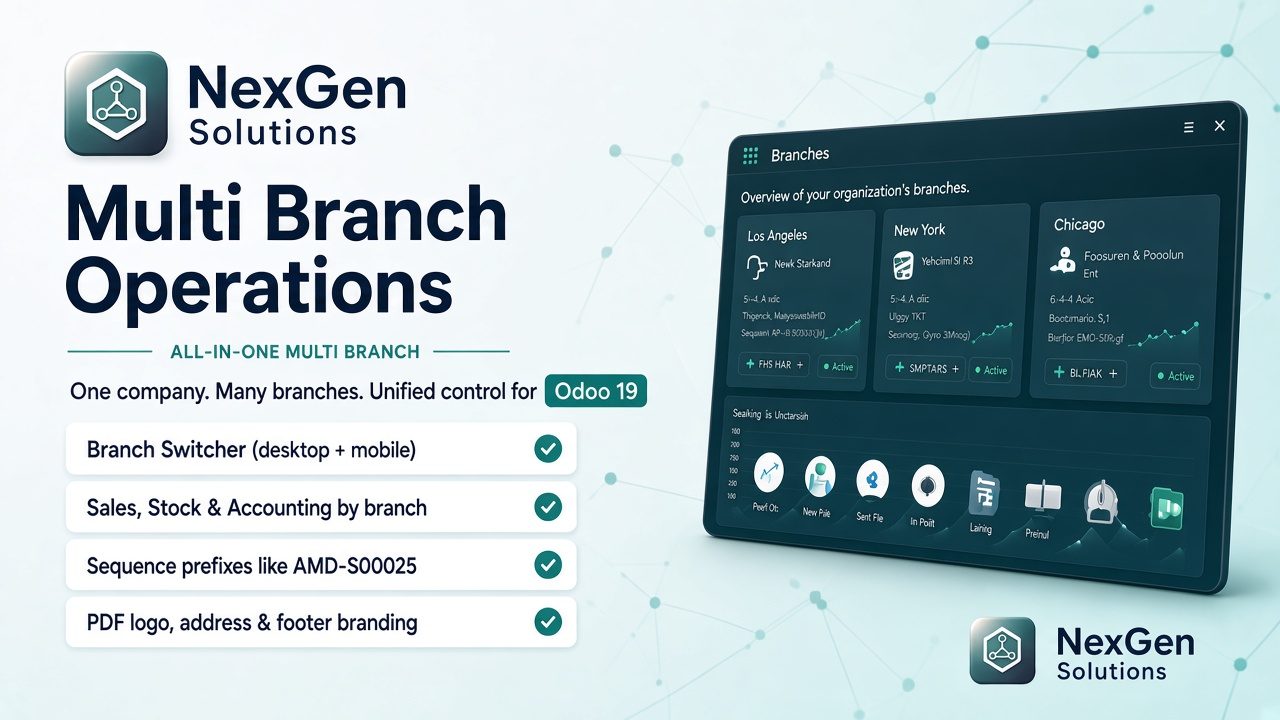
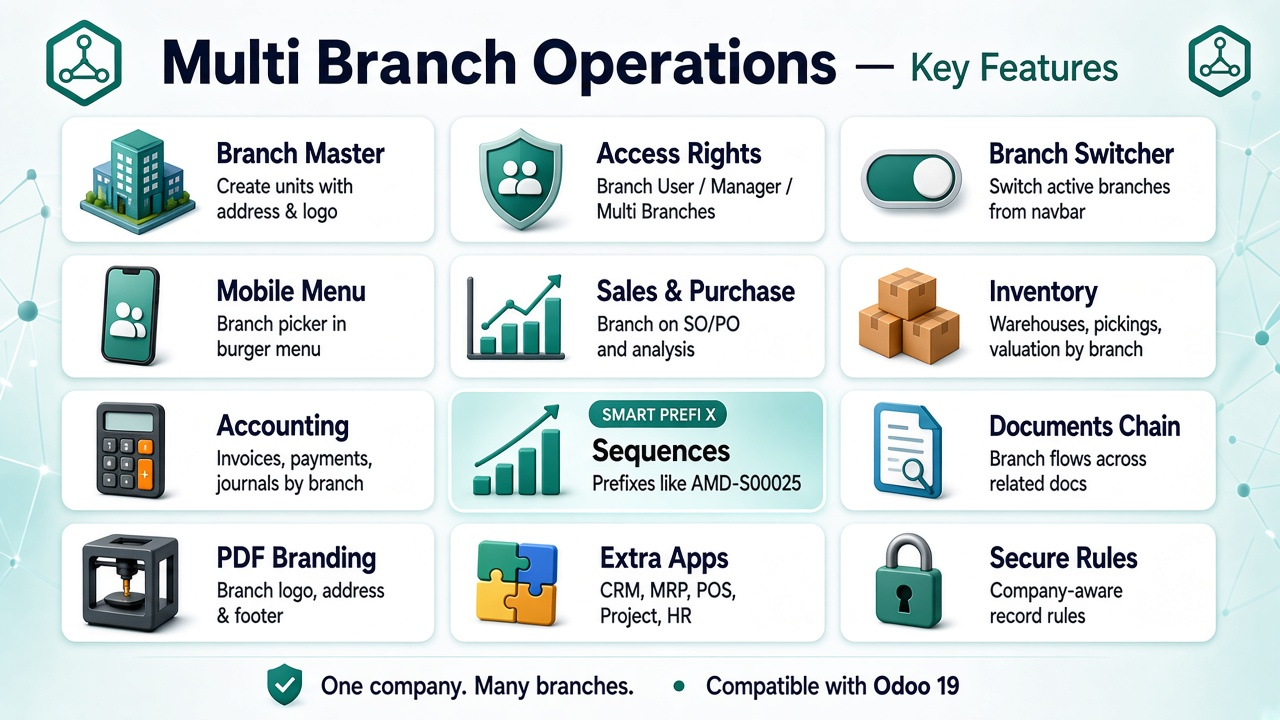
Multi Branch Operations for Odoo 19 — feature overview banner

Have questions or need customization?

The NexGen Solutions team is here to help! Whether you need support, installation assistance, or a custom feature developed, we're just a click away.

NexGen Solutions
Published by
NexGen Solutions
Odoo 19 App
Odoo 19 · Community · Enterprise · Odoo.sh · On-Premise

Multiple Branch Unit Operations

Multiple Branch Unit Operation Setup lets one company run many branches as separate operating units — with access rights, document flows, inventory, accounting, PDF branding and branch sequences — just like Odoo’s multi-company model.

Multi-branch concept Desktop + mobile switcher Sales / Purchase / Stock / Accounting CRM / MRP / POS / Project / HR PDF logo + sequences Author: NexGen Solutions
About this app

What does this app do in Odoo 19?

Do you run multiple units under one company and need them to behave as separate entities? This app brings a multi-branch model that works like Odoo multi-company: users see only their branches, documents carry a branch, stock and accounting stay segregated, and reports print branch branding.

Technical name: branch_nexgen. Combines core multi-branch operations with advance capabilities (branch logo/address on PDFs and branch sequence prefixes such as AMD-S00025).

  • Works on Community, Enterprise, Odoo.sh and on-premise (not Odoo Online SaaS)
  • Branch User / Manager / Multi Branches security groups and record rules
  • Company-aware branches — no access to a company means no access to its branches
  • Publisher: NexGen Solutions · Support: nexgensolutionsodoo@gmail.com
Main screen

One company. Many branches. Unified control.

Switch active branches from the navbar, manage branch masters, and keep every document tied to the right unit.
Multi Branch Operations module icon Multi Branch Operations for Odoo 19 — main screen
At a glance

Feature map

Everything you need for multi-unit operations under one company — from access rights to PDF branding.

🏢Branch Master
🔐User / Manager Rights
🔄Multi Branches Switcher
📱Mobile Branch Menu
👤Branch on Contacts
📦Branch on Products
💰Sales + Analysis
🛒Purchase + Analysis
🚚Deliveries / Receipts
📄Invoices / Bills
💳Payments / Statements
📚Journals / Items
🏭Warehouses / Locations
📊Inventory Valuation
🎯CRM Leads / Opps
⚙️Manufacturing Orders
💵Point of Sale
📋Projects / Tasks
👥Employees
🏷️Sequence Prefixes
🖼️PDF Logo & Address
🔍Group By Branch
How it works

Configure branches once — every document follows

Create branches, assign users, enable Multi Branches, then work as usual. Sales, purchases, stock and accounting inherit the active branch automatically.

1

Install

Install branch_nexgen and open Settings → Users & Companies → Branches.

2

Create branches

Set company, address, phone, logo and sequence prefix (e.g. AMD).

3

Assign users

Allowed Branches + Default Branch, plus User / Manager / Multi Branches groups.

4

Operate

Switch branch from the header and create SO / PO / invoices / transfers as usual.

Branch master

Create multiple branches under each company

Branch managers define units with address, phone, company and optional logo. Enable Apply Branch Sequence Prefix to stamp documents with identifiable numbers such as AMD-S00025.
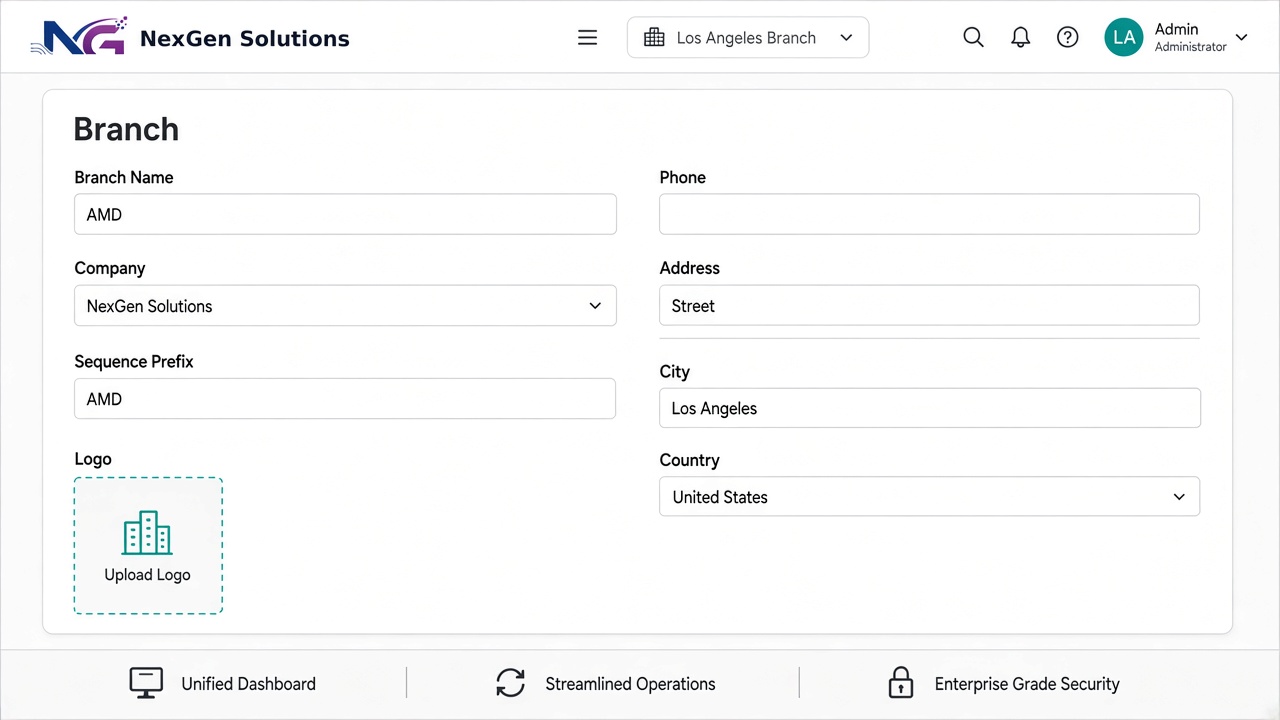
✓ Address & phone
✓ Branch logo
✓ Sequence prefix
✓ Per-company branches
Create Multiple Branch master form
Navbar switcher

Multi Branches feature on desktop

Users with Multi Branches see allowed branches in the header. Changing the active branch updates the user default and filters subsequent documents by company and branch.
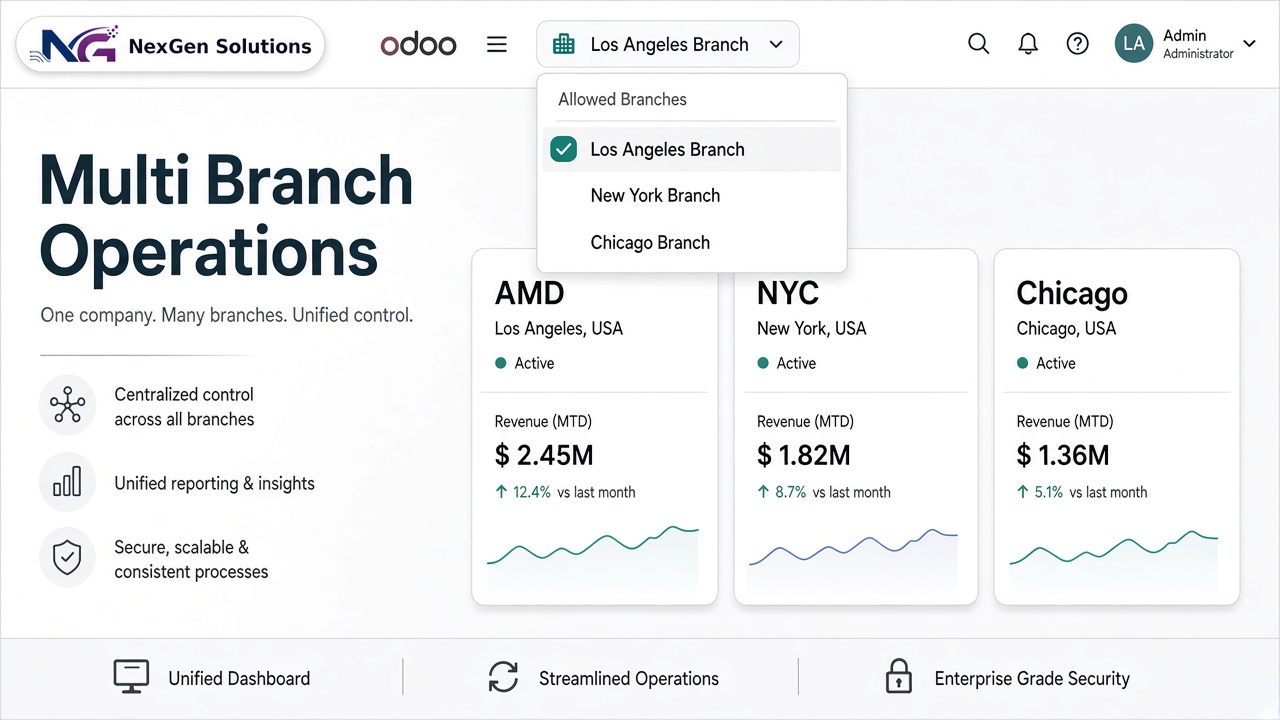
✓ Systray branch menu
✓ Company-filtered list
✓ Active branch sync
✓ Group by Branch filters
Multi Branch switcher in header
Security & users

Branch access rights that scale

Branch User sees only their branch records. Branch Manager sees all branches. Multi Branches unlocks the switcher. Multi-company rules already apply on the branch object.

Users

Assign Allowed Branches & Default Branch

On Access Rights, place Allowed Branches and Default Branch directly under Default Company. Users only work with branches belonging to companies they can access.
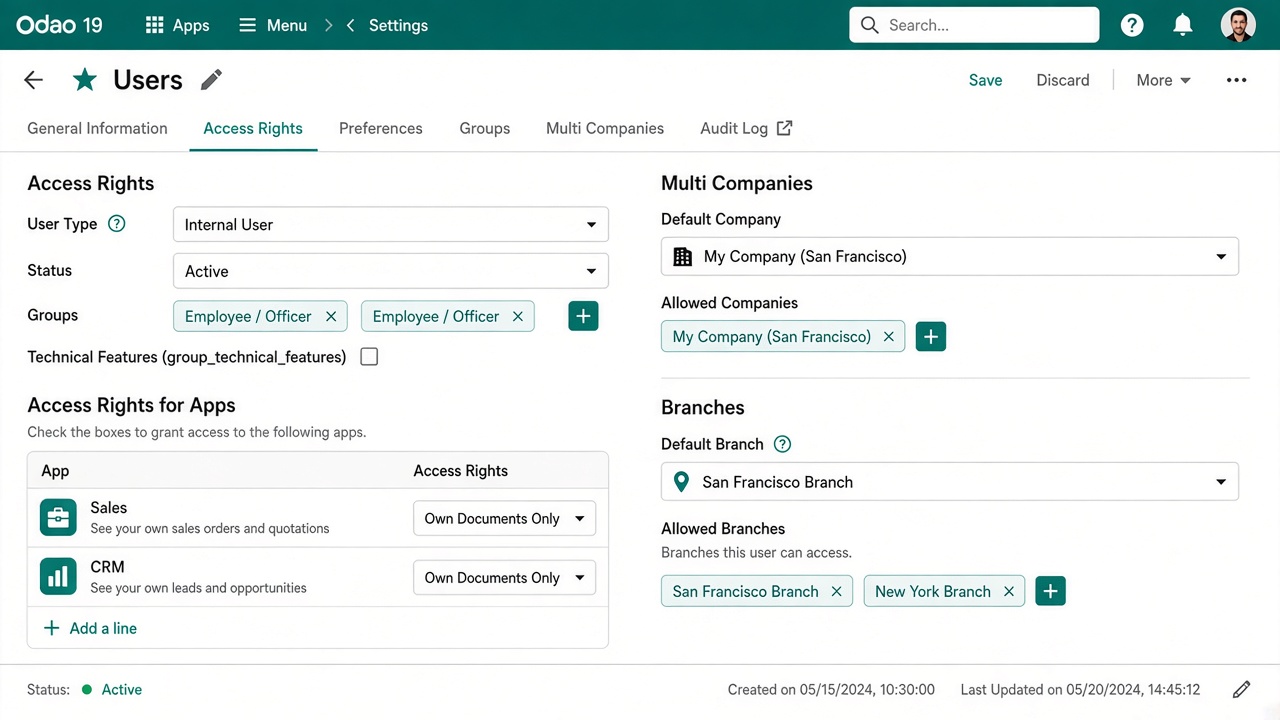
✓ Allowed Branches tags
✓ Default Branch
✓ Branch User / Manager
✓ Multi Branches group
Assign branch on users
Mobile

Multi-branch access in mobile view

Open the account / burger menu on phone or tablet. Branches appears next to Companies so users can select one or more allowed branches on the go.
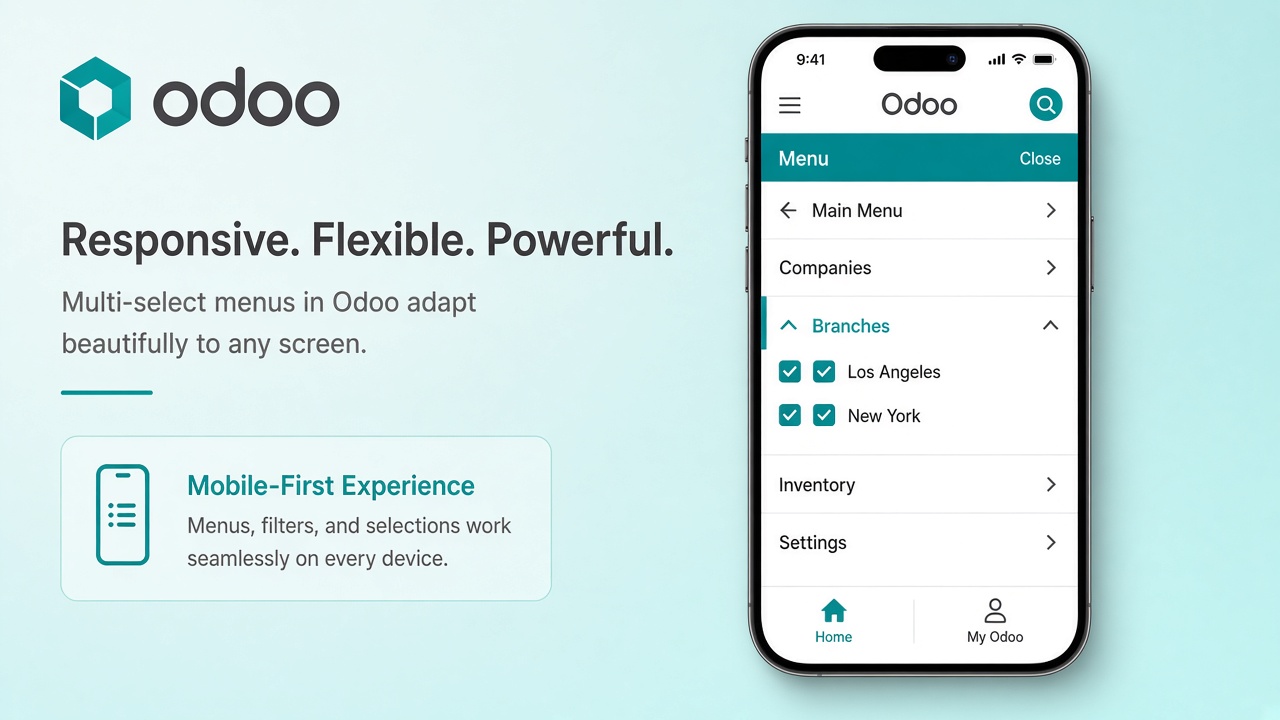
✓ Responsive burger menu
✓ Branches like Companies
✓ Multi-select allowed
✓ Same security rules
Mobile multi branch menu
Masters

Branch on customers & products

Set branch on partners and product templates (variants inherit). Visibility of Branch follows Company field rules (multi-company / optional columns).

✓ Branch on Contact
✓ Branch on Product Template
✓ Branch on Product Variant
✓ After Company field
End-to-end documents

Complete workflow for every branch

Login user branch is applied on create. Confirmations propagate branch to pickings, invoices, journal items and payments. Prefix sequences identify the unit on every document.

Sales flow

Branch on quotations, orders, deliveries & invoices

Sales orders take the user branch and matching warehouse. Confirming the order sets the same branch on delivery and customer invoice. Journal items and payments inherit it. Sales Analysis supports Group By Branch.
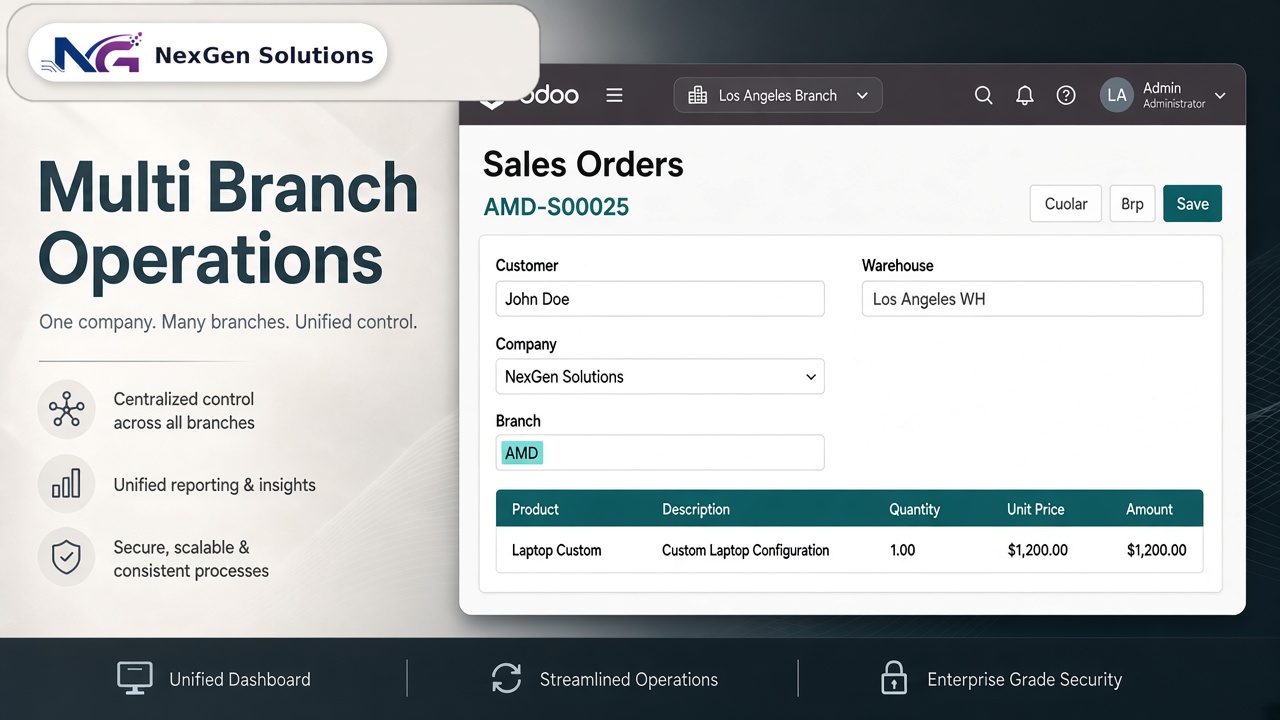
✓ SO branch + warehouse
✓ Delivery inheritance
✓ Customer invoice & payment
✓ Sales analysis by branch
Branch on sales order
Purchase & accounting

RFQs, receipts, vendor bills & payments

Purchase orders get the user branch and prefix. Confirming RFQ sets branch on incoming shipment and vendor bill. Payments and bank statements keep the branch. Accounting journals can be branch-scoped.
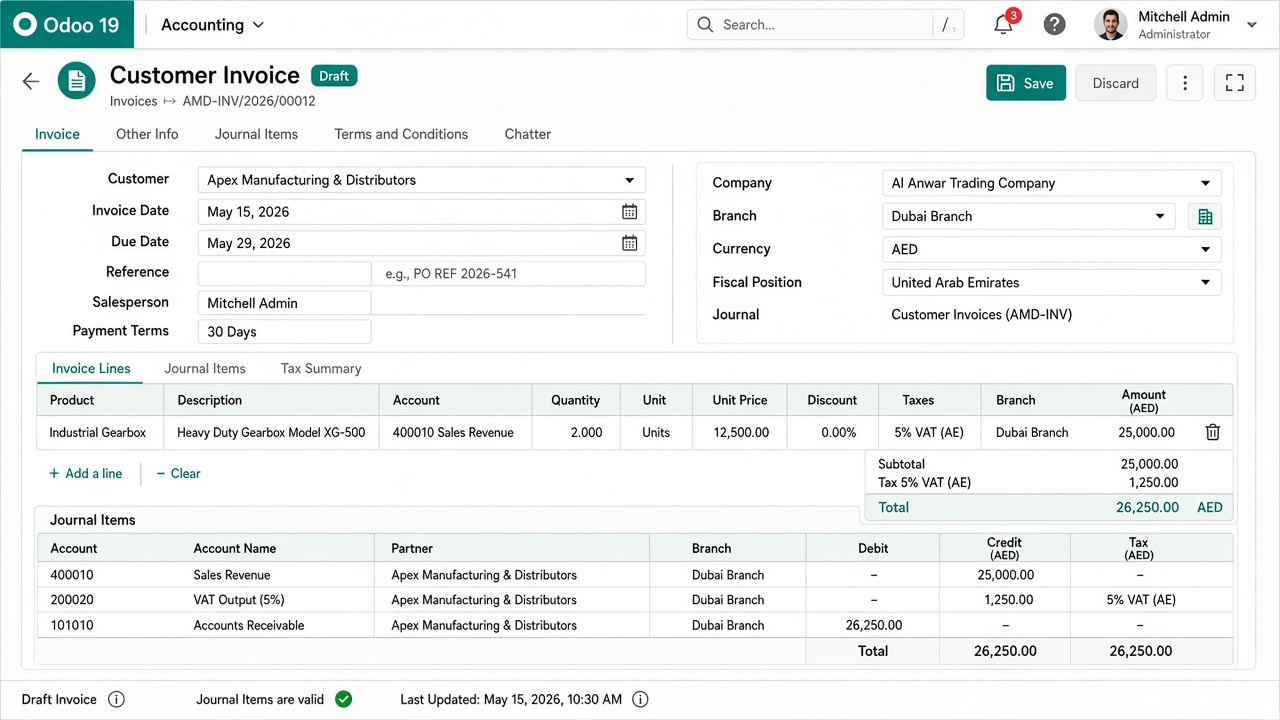
✓ PO + purchase analysis
✓ Incoming shipment
✓ Vendor bill & payment
✓ Journal / journal items
Branch on accounting documents

Propagation rules

  • SO → Delivery → Invoice → Payment / Statement
  • PO → Receipt → Vendor Bill → Payment
  • Manual invoices use the login user branch
  • Journal items follow the move branch

Sequence prefixes

  • Enable Apply Branch Sequence Prefix on the branch
  • Examples: AMD-S00025, AMD-P00010, AMD-IN/0008
  • Lazy sequence creation per branch document type
  • Same prefix visible on PDF reports
Inventory & more apps

Stock, CRM, MRP, POS, Project & HR

One module covers the main Odoo applications so every unit stays consistent.

Inventory

Warehouses, locations, scrap & valuation

Define branch on warehouses and locations. Quants, scraps and inventory valuation carry branch for clear stock ownership per unit.
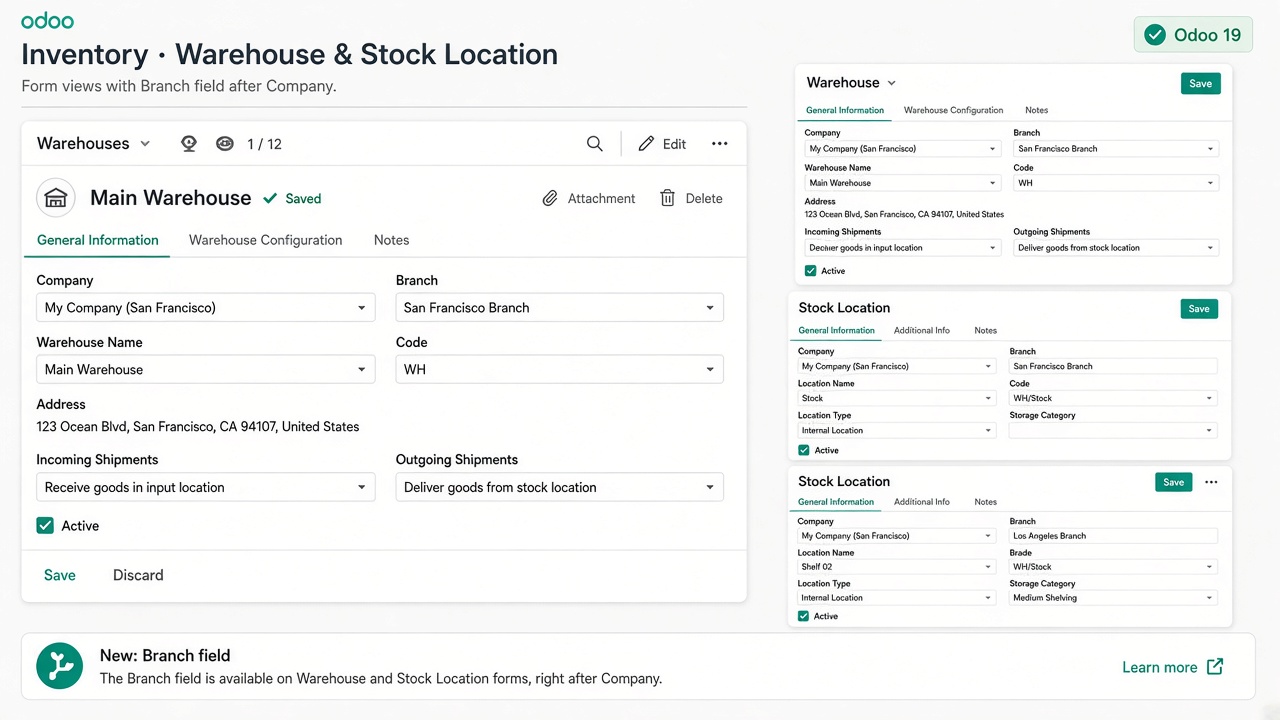
✓ Warehouse branch
✓ Location branch
✓ Scrap & quants
✓ Inventory valuation
Branch on warehouse and locations
🎯

CRM

Branch on leads & opportunities with Group By Branch.

⚙️

Manufacturing

Branch on MOs; moves and reports follow the production branch.

💵

Point of Sale

Branch on POS config and orders; sessions inherit config branch.

📋

Project & HR

Branch on projects, tasks and employees for unit-level staffing.

Advance reporting

Print branch logo, address & footer on every PDF

External and internal layouts show branch branding. Footer includes Branch name and phone. Applies to sales, purchase, picking, invoice, payment and manufacturing reports.

PDF layouts

Branch details on headers & footers

When a document has a branch, reports use the branch logo and address instead of (or alongside) company stationery. Footer prints Branch: Name and Phone for clear unit identification.
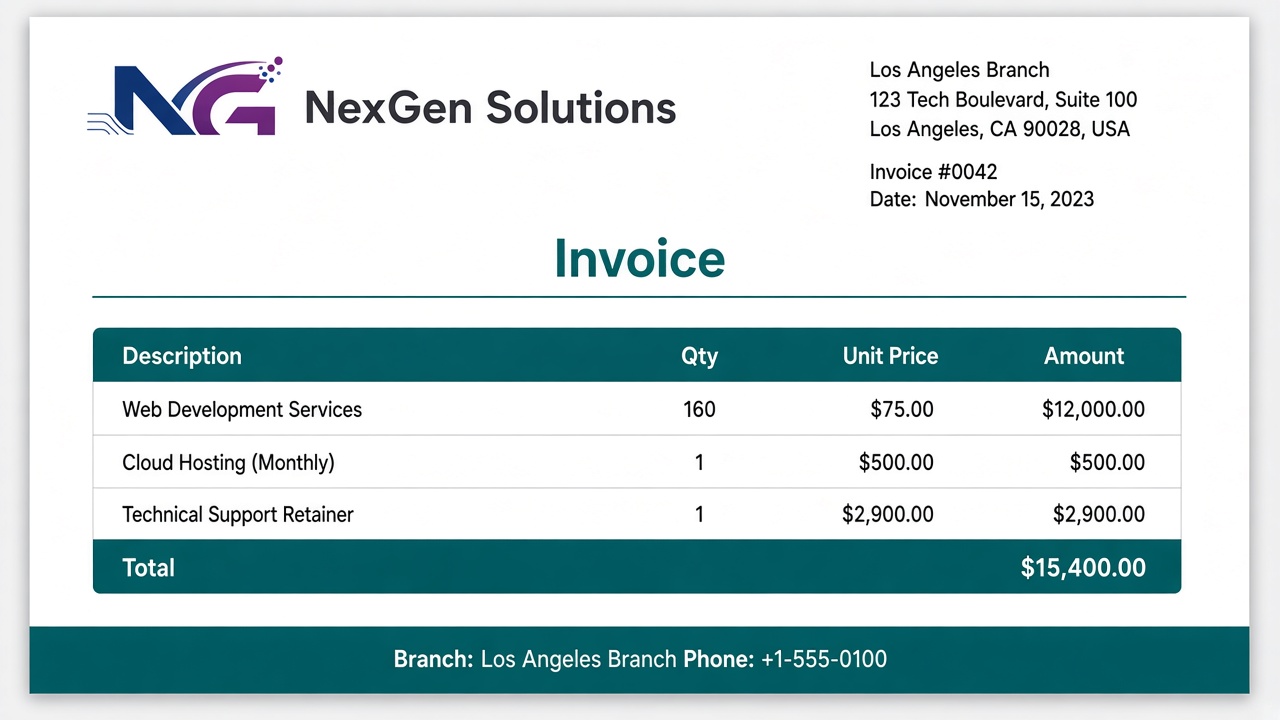
✓ Branch logo on header
✓ Branch address block
✓ Footer Branch + Phone
✓ Works across layouts
Branch details on PDF reports

Sales & Purchase analysis

Pivot and graph reports include Branch for performance by unit.

Invoice analysis

Account invoice report supports Group By Branch for revenue by unit.

List filters

Group By Branch on SO, PO, invoices, pickings, payments, statements and more.

69 questions

FAQ

Setup, access rights, switcher, documents, inventory, accounting, sequences, PDFs, reporting, install and support.

What does this app do?

It adds multi-branch (multi-unit) operations under one company: branch masters, user access, navbar/mobile switcher, branch on commercial documents, inventory, accounting, CRM/MRP/POS/Project/HR, PDF branding and branch sequence prefixes.

What is the technical name of this module?

The technical name is branch_nexgen. Install it from Apps after updating the apps list on Odoo 19.

Is this the same as Odoo multi-company?

No. Branches sit under a company. Users without access to a company cannot see its branches. Multi-branch lets several units share one company while keeping records segregated by branch.

What is the difference between a branch and a company?

A company is Odoo’s legal/accounting entity. A branch is an operating unit inside a company (store, warehouse site, region). One company can have many branches; documents and stock can be tagged by branch without creating extra companies.

Can I use multi-company and multi-branch together?

Yes. Create several branches per company. Company rules apply first; then branch rules filter within the allowed companies.

Does it work on Community and Enterprise?

Yes — Odoo 19 Community and Enterprise on Odoo.sh and on-premise.

Can I use this module with Odoo Online (SaaS)?

No. Third-party Apps Store modules cannot be installed on Odoo Online. Use Odoo.sh or your own on-premise / hosting server.

Do I need a developer to use this module?

No. Create branches, assign users and groups, then operate. Optional technical help is available if you want unused app dependencies trimmed.

How do I install the module?

Copy the module into your addons path, update the Apps list, then install Multiple Branch Unit Operation Setup for All Applications (technical name branch_nexgen).

What happens after installation?

Security groups, branch menus, views, record rules and the branch switcher assets are loaded. Create your first branches under Settings → Users & Companies → Branches, then assign them on users.

Where do I create branches?

Go to Settings → Users & Companies → Branches (or the Branches menu provided by the app). Branch managers can create and edit branch masters.

What information can I store on a branch?

Name, company, address (street, city, state, country, ZIP), phone, logo, and optional sequence prefix settings for document numbering.

Can each branch have its own logo and address?

Yes. Upload a logo and set the full address and phone. These details are used on PDF reports when the document belongs to that branch.

What access rights / groups are included?

Branch User (own branch records only), Branch Manager (all branches), and Multi Branches (desktop/mobile branch switcher). Record rules enforce visibility.

What can a Branch User see?

A Branch User can access records of the branch(es) they are allowed to use. They cannot manage all branches unless they are also a Branch Manager.

What can a Branch Manager see?

A Branch Manager can view and manage records across branches (subject to company access), and typically maintain the branch master data.

What does the Multi Branches group do?

It enables the branch switcher in the navbar (desktop) and the Branches menu in the mobile / burger account menu so users can change their active allowed branches.

How do I assign branches to a user?

Open the user form → Access Rights. Set Allowed Branches and Default Branch (placed after Default Company). Also assign Branch User / Manager / Multi Branches as needed.

What is Allowed Branches vs Default Branch?

Allowed Branches are the units the user may work in. Default Branch is the starting / preferred branch used when creating new documents (and kept in sync with the switcher).

Can a user belong to multiple branches?

Yes. Add multiple Allowed Branches. With Multi Branches, the user can switch or activate the branches they need from the header or mobile menu.

Are branches filtered by company?

Yes. Branches are company-specific. The switcher and domains only show branches for companies the user can access.

How does the desktop branch switcher work?

Users with Multi Branches open the branch menu in the systray/header, see allowed branches (company-filtered), and select the active branch. The user’s default/active branch updates accordingly.

Is multi-branch available on mobile?

Yes. Open the account / burger menu. Branches appears similarly to Companies so users can select allowed branches on phone or tablet.

Does changing the active branch change existing documents?

No. Switching branch affects the user context for new work and filtering. Existing documents keep the branch already stored on them unless you edit those records.

Which documents get a branch field?

Contacts, products, sales, purchase, pickings, scraps, invoices/bills, payments, bank statements, journals/items, warehouses, locations, quants, valuation, CRM, manufacturing, POS, projects/tasks and employees.

Is Branch shown after Company on forms and lists?

Yes. Views place branch_id immediately after company_id, and Branch visibility follows Company visibility (groups, optional, invisible / column_invisible).

How is branch set on a new sales order?

The login user’s branch is set by default. Warehouse can follow the selected branch. Confirming the order propagates branch to delivery and customer invoice.

How is branch set on a purchase order?

The login user’s branch is set by default. Confirming the RFQ/PO propagates branch to the incoming shipment and vendor bill.

Does branch propagate to deliveries and receipts?

Yes. Pickings created from sales or purchase inherit the parent document’s branch.

Does branch propagate to invoices and bills?

Yes. Invoices/bills created from SO/PO inherit the order branch. Manual invoices use the login user’s branch.

Does branch appear on journal items?

Yes. Journal items follow the accounting move’s branch.

Does branch appear on payments and bank statements?

Yes. Payments inherit from related invoices/moves when available. Bank statements and statement lines can also carry branch.

Can journals be branch-specific?

Yes. You can set a branch on account journals so accounting documents align with the unit.

Is there branch on customers/contacts?

Yes. Set Branch on the partner (Sales & Purchases / company area). Visibility follows the Company field rules.

Is there branch on products?

Yes. Set Branch on the product template; variants inherit. Product lists can show Branch after Company.

Is there branch on warehouses and locations?

Yes. Define branch on warehouses and stock locations so inventory ownership stays clear per unit.

Is there branch on inventory valuation / scraps / quants?

Yes. Valuation, scraps and quants support branch so stock value and adjustments can be analyzed by unit.

Does CRM support branch?

Yes. Leads and opportunities include Branch, with Group By Branch in search views.

Does Manufacturing support branch?

Yes. Manufacturing orders carry Branch; related moves and MO reports can follow the production branch.

Does Point of Sale support branch?

Yes. Set Branch on the POS config; sessions and orders inherit. Lists can show company then branch.

Do Projects and Tasks support branch?

Yes. Projects and tasks include Branch for unit-level delivery tracking.

Do Employees support branch?

Yes. Employees can be linked to a branch on the Work information page (after Company).

How do branch sequence prefixes work?

Enable Apply Branch Sequence Prefix on the branch and set a short code (e.g. AMD). Document numbers use that prefix (e.g. AMD-S00025). Sequences are created lazily per branch and document type.

Which documents use the sequence prefix?

Sales, purchase, pickings, invoices/bills, payments and related flows that use branch-aware sequences. The same prefix helps identify the unit on PDFs.

What if I do not enable sequence prefix?

Documents still store Branch. Numbering continues with standard Odoo sequences without the branch code prefix.

Do PDF reports show branch branding?

Yes. When a document has a branch, layouts can print branch logo and address. Footer can show Branch: Name and Phone.

Which reports show branch details?

Sales, purchase, picking/delivery, invoice/bill, payment and manufacturing reports that use the shared report layouts.

Can I analyze sales by branch?

Yes. Sales analysis includes Branch so you can pivot/graph performance by unit.

Can I analyze purchases by branch?

Yes. Purchase analysis includes Branch for spend and vendor activity by unit.

Can I group list views by branch?

Yes. Group By Branch is available on sales, purchase, invoices, pickings, payments, statements and other supported models.

Does invoice analysis support branch?

Yes. Account invoice report supports Group By Branch for revenue analysis by unit.

Will users without Multi Branches still work?

Yes. They keep their Default / Allowed Branches and create documents for those branches. They simply will not see the switcher UI.

What if a user has no allowed branches?

They should be assigned at least one Allowed Branch and a Default Branch. Without that, new documents may not get a meaningful branch context.

Can I hide Branch when Company is hidden?

Yes. Branch field visibility is aligned with Company (multi-company group, optional show/hide, invisible / column_invisible where applicable).

Does the module depend on Sales and Purchase?

Yes. The package targets a full business stack (Sales, Purchase, Inventory, Accounting, plus CRM, MRP, POS, Project, HR). Contact support if you need unused dependencies removed.

Will confirming an order overwrite a manually changed branch on the picking?

Propagation keeps related documents aligned with the parent order’s branch. Prefer setting the correct branch on the source document before confirmation.

Can portal / website customers use the branch switcher?

The switcher and multi-branch groups are designed for internal users. Portal users are not the primary audience for branch switching.

Is data migrated from another branch app?

This is a NexGen Odoo 19 module. Migration from third-party branch apps depends on your database; contact support for a migration plan if needed.

Does the module include translations?

The module follows Odoo’s translation system for menus, fields and messages. Additional languages can be added on request.

What license is the module under?

OPL-1 (Odoo Proprietary License v1.0). Purchase grants usage rights per the Apps Store terms.

Do I need to buy the module for every Odoo version?

Yes. Starting from common Apps Store practice, each major version is sold separately. This listing is for Odoo 19.

What support is included?

90 days free support for bugs or issues with the module (excluding data recovery / custom development). Email nexgensolutionsodoo@gmail.com.

How do I get help after purchase?

Write to nexgensolutionsodoo@gmail.com with your Odoo version, database type (Community/Enterprise), and steps to reproduce.

What if the module does not work after install?

Confirm Odoo 19, correct addons path, Apps list updated, dependencies installed, and your user has Branch groups. Then contact support with logs/screenshots.

Can you remove Sales or Purchase dependency for Enterprise?

Yes — if you do not use a specific application, contact NexGen Solutions and we can guide removal of unused dependencies where feasible.

Does branch affect accounting consolidation?

Branch tags documents inside a company for operational control and reporting. Legal consolidation remains at company level; use Branch in analysis for unit KPIs.

Can two companies share the same branch record?

No. Each branch belongs to one company. Create separate branch records per company even if names are similar.

Is there a demo or video?

Contact nexgensolutionsodoo@gmail.com for a demo walkthrough of multi-branch setup and document flows.

Who publishes this app?

NexGen Solutions — website nexgensolutions.odoo.com, support nexgensolutionsodoo@gmail.com.

✦ Business value · built into Odoo Benefits of multi-branch

Run every unit with clarity

Give each branch its own identity, documents and stock while keeping one company, one database and one Odoo subscription.

🏢

Unit-level operations

Separate sales, purchase, stock and accounting per branch without spinning up extra companies.

🔒

Secure by design

Users only see allowed branches. Managers oversee all. Multi-company rules stay in force.

📈

Clear reporting

Group and analyze by branch across sales, purchase and invoicing for unit KPIs.

🏷️

Recognizable documents

Prefixes and PDF branding make it obvious which unit issued every order or invoice.

Included with purchase

90 days free support after purchase

Installation, configuration guidance, questions and bug fixing from NexGen Solutions.

Installation Configuration Bug fixes Best-practice tips
Contact support
More Apps

Explore our premium solutions

Elevate your Odoo workspace with our meticulously crafted modules.

Ready to run multi-branch operations in Odoo 19?

One company. Many branches. Unified control — with access rights, documents, stock, accounting and PDF branding.