NexGen Solutions
AI Assistant NexGen
The AI Copilot that doesn’t just answer — it acts. Search, create, update, report and navigate Odoo in plain language with multi-provider AI, safe approvals, RAG documents and a full audit trail.
What does AI Assistant NexGen do?
Turn natural language into real Odoo actions. The Copilot understands your ERP data, plans tool calls, asks for approval on writes, then executes safely with audit logging. Bring your own API keys for OpenAI, Claude, Gemini, NVIDIA NIM and OpenRouter.
Technical name: ai_assistant_nexgen · Depends on: Discuss (mail).
- Sidebar + fullscreen ChatGPT-style workspace
- Instant top/list/count fast-path for common Odoo objects
- Every write requires an explicit step-by-step approval plan
- Publisher: NexGen Solutions · Support: nexgensolutionsodoo@gmail.com
Chat Workspace — ask, approve, act
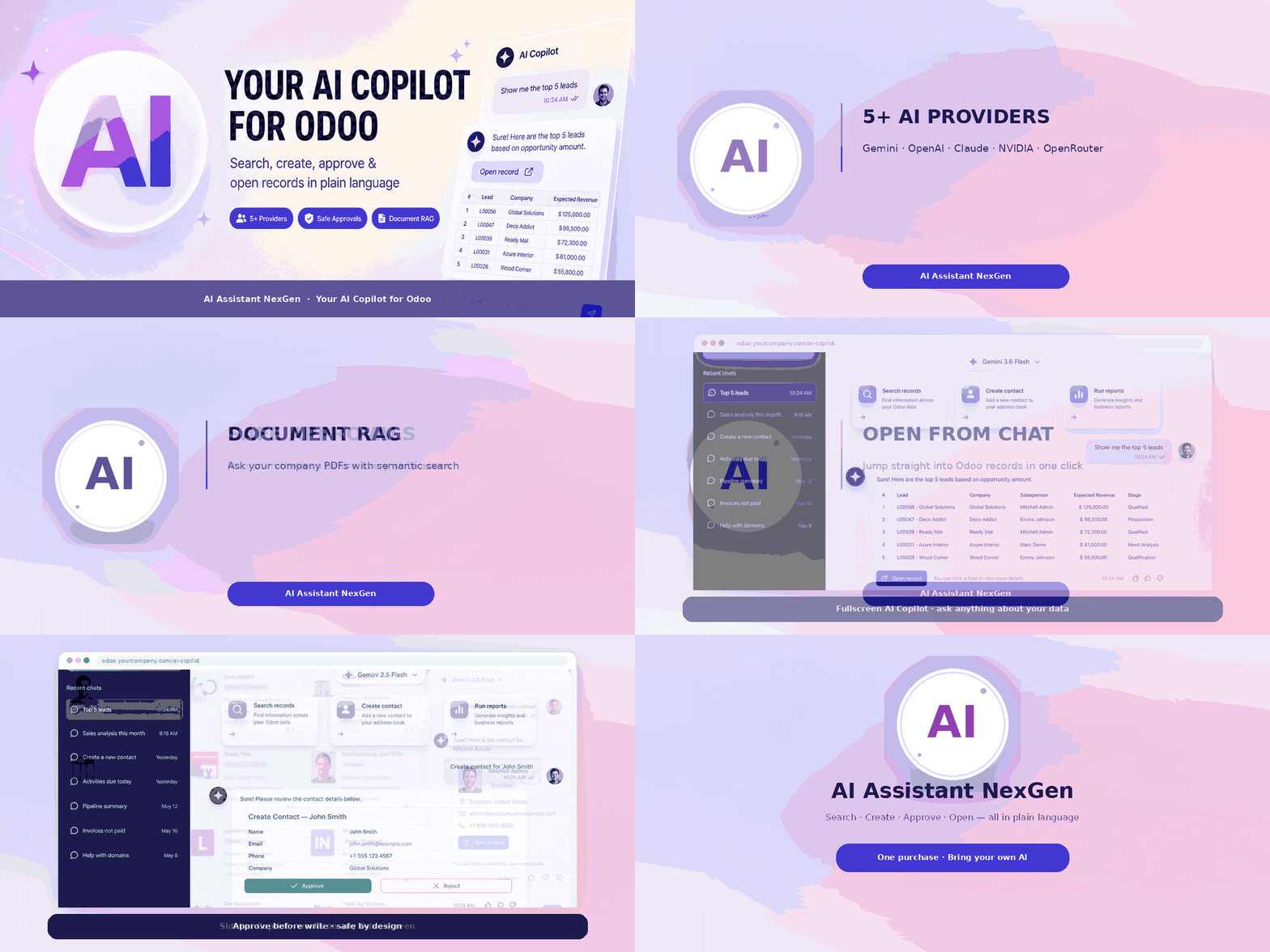
Animated walkthrough of the Copilot — providers, approvals, RAG, sidebar and open-from-chat.
Demo video + animated walkthrough
Live walkthrough of workspace, approval plan, sidebar, providers and document RAG.
Feature map
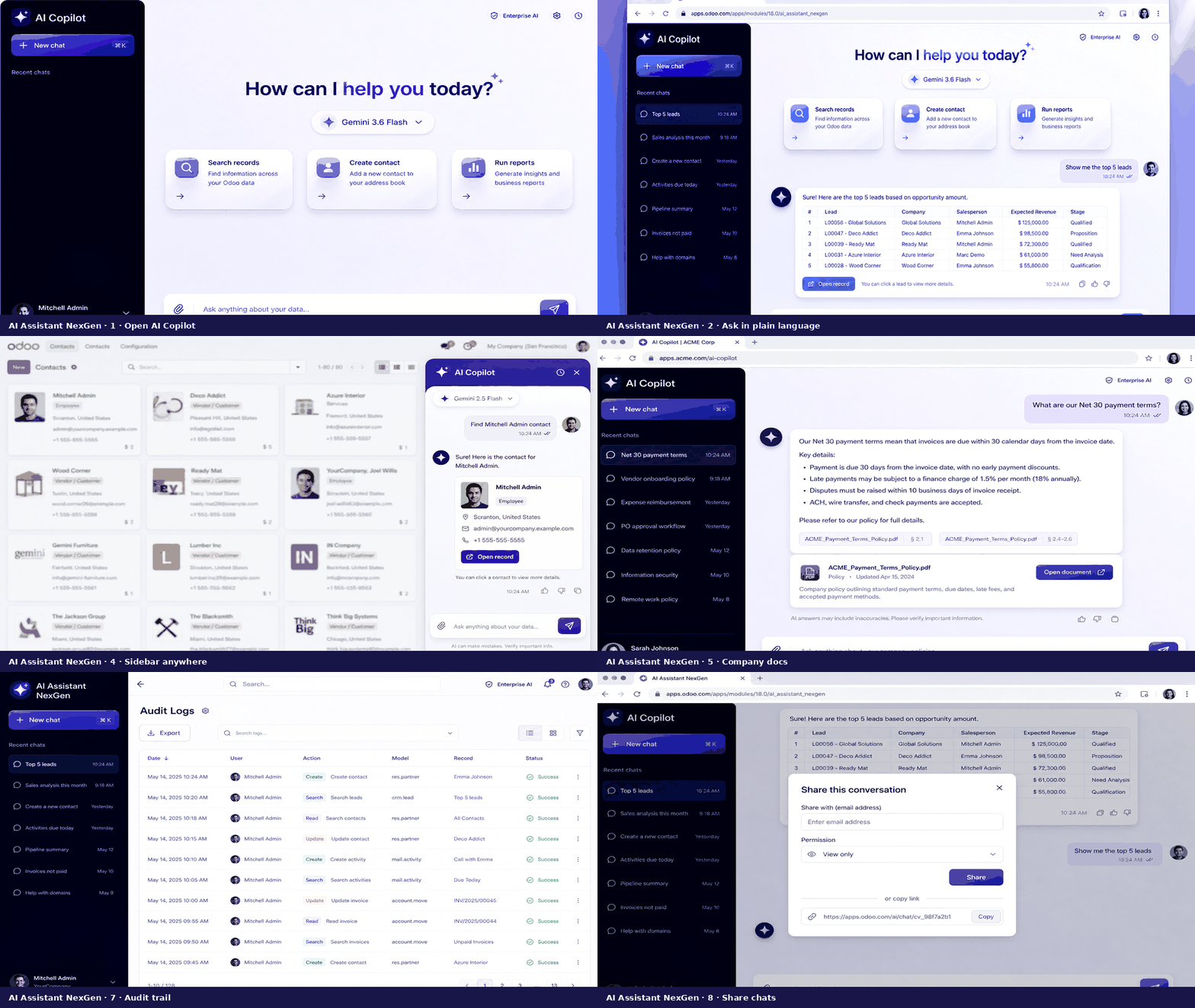
Explore every capability below with live screenshots and GIFs.
 5+ AI Providers
 20+ Native Tools
 RAG Document Search
 Multimodal AI
 Safe Approval
 Full Audit Trail
 Sidebar Copilot
 Fullscreen Workspace
 Stop Generation
 Share Chat
 Security Groups
 Open Records
 Instant Fast Search
 Chat HistoryChatter & EmailAccounting ReportsNavigate ViewsACL-Safe ToolsModel SelectorSuggestion Cards
Ask naturally — review — execute safely
The Copilot plans tool calls, shows a step-by-step plan for writes, then runs inside savepoints with a full audit trail.
Install & configure
Add an AI provider key and sync chat models.
Ask in plain language
Use sidebar or Chat Workspace with optional PDF/images.
Approve writes
Review the plan, then Execute or Cancel.
Open & share
Jump to records, share chats via Discuss or email.
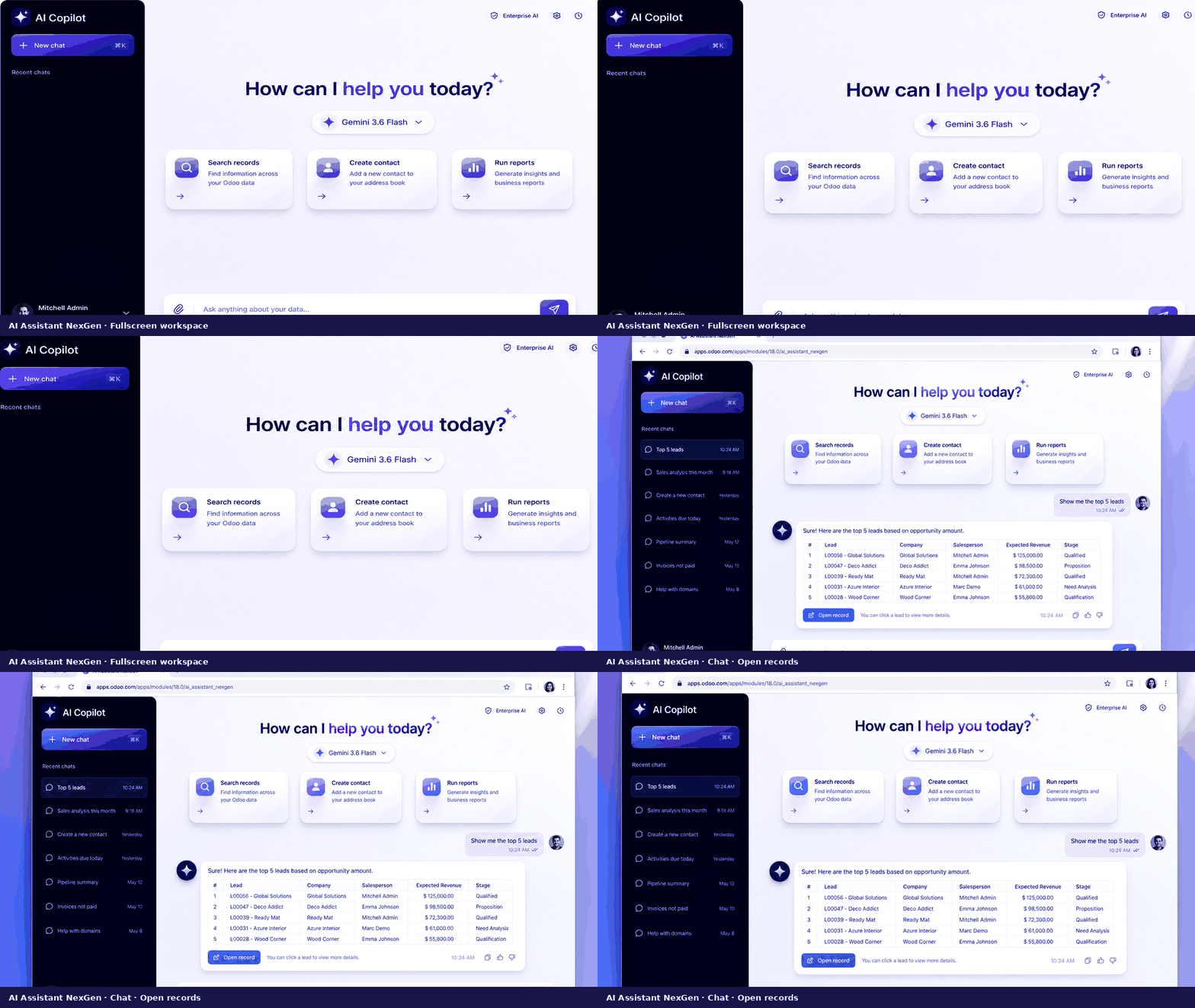
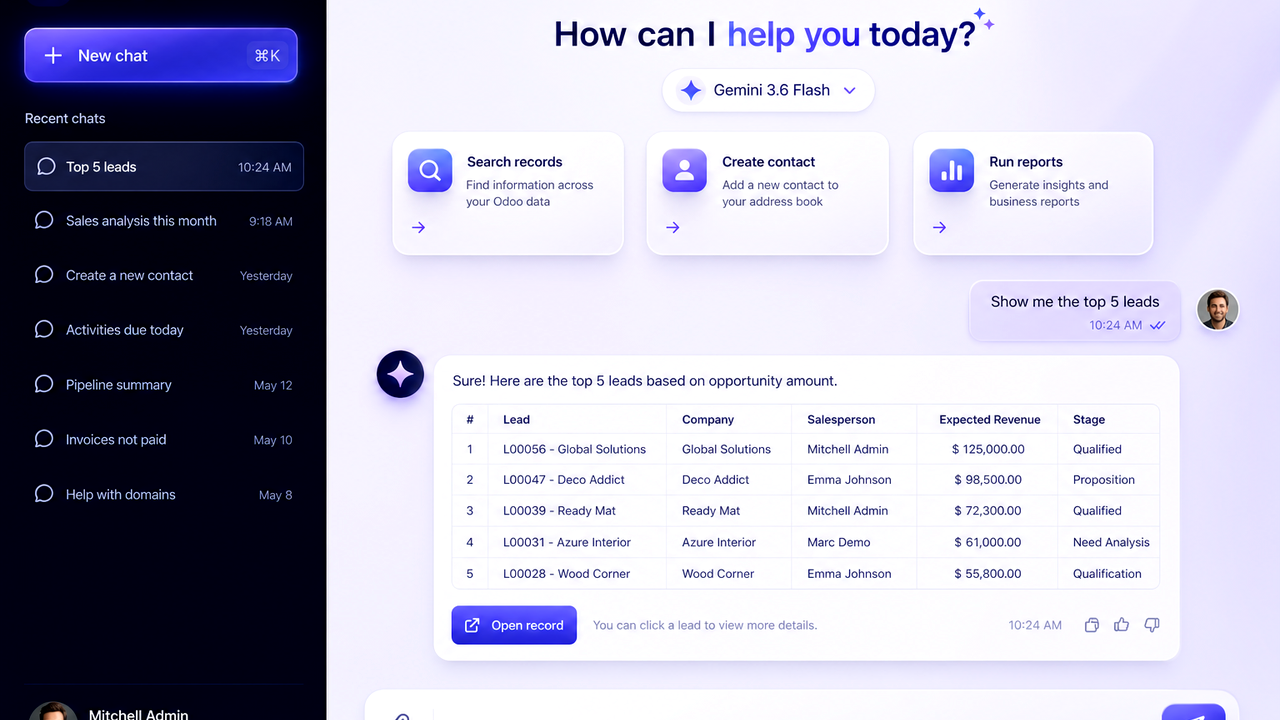
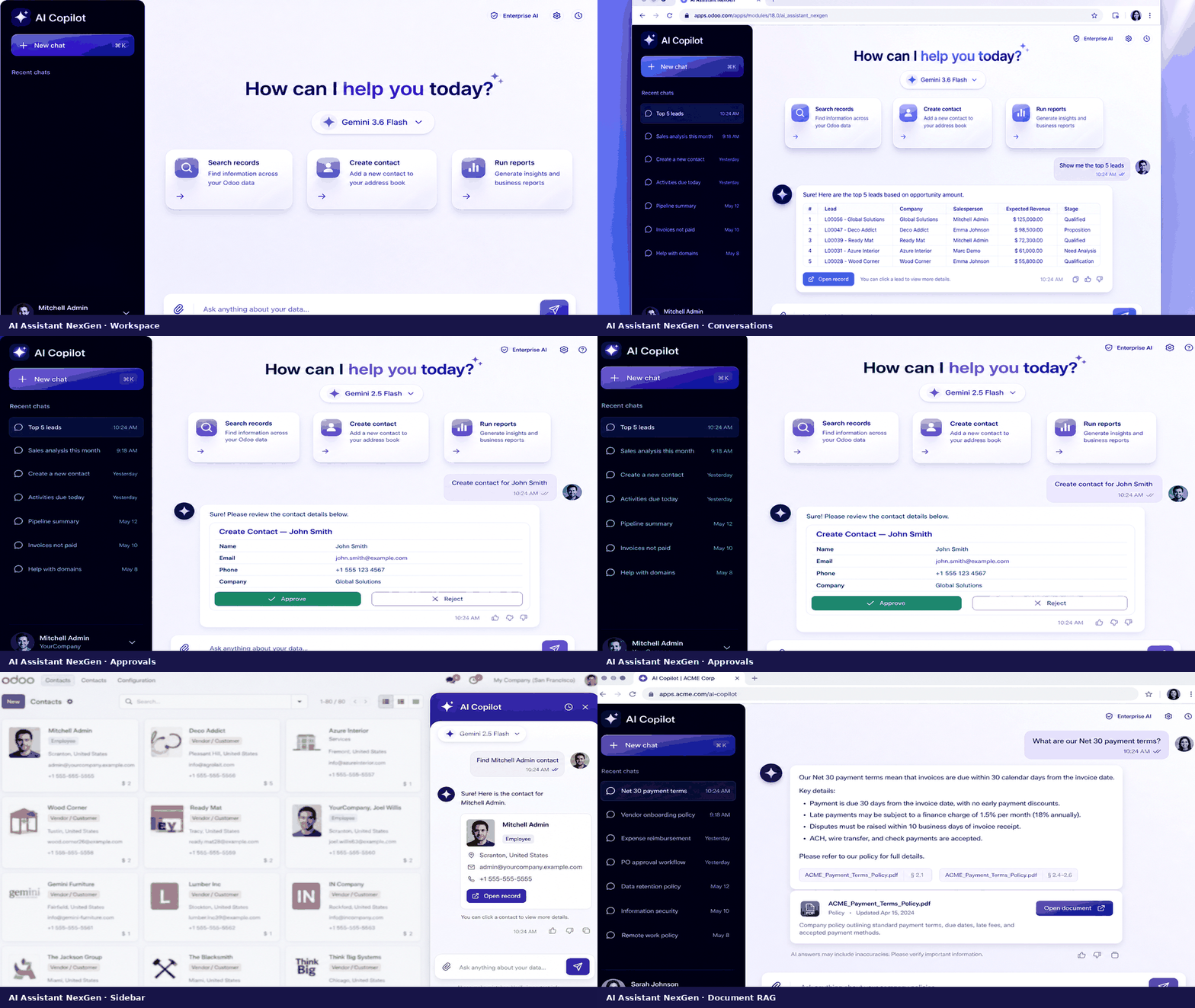
Fullscreen AI Copilot
ChatGPT-style dark sidebar, model selector, suggestion chips and composer with drag & drop attachments.
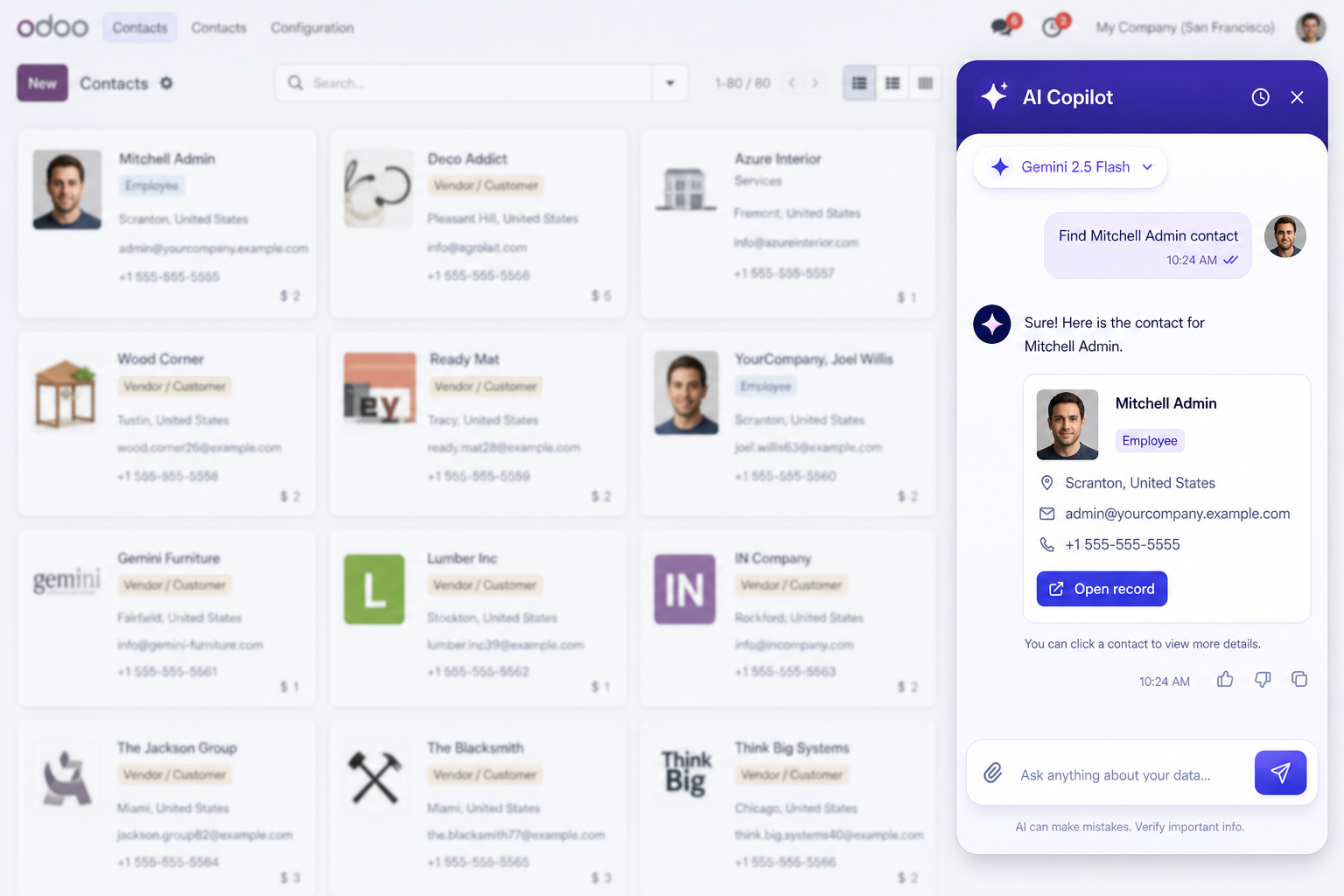
Always-on systray assistant
Open the Copilot from any Odoo screen without leaving your current view.
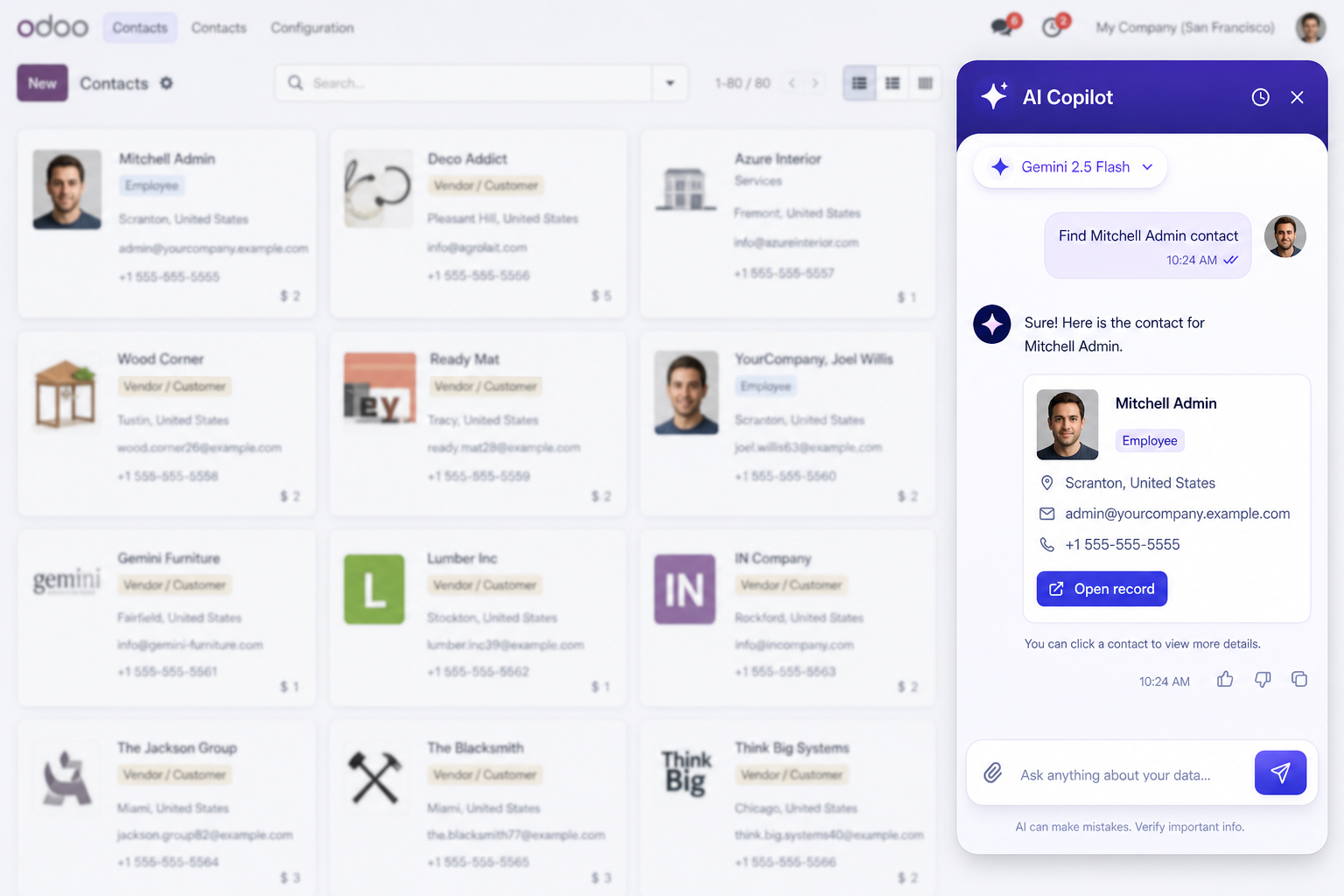
Config — Systray magic icon opens the panel.
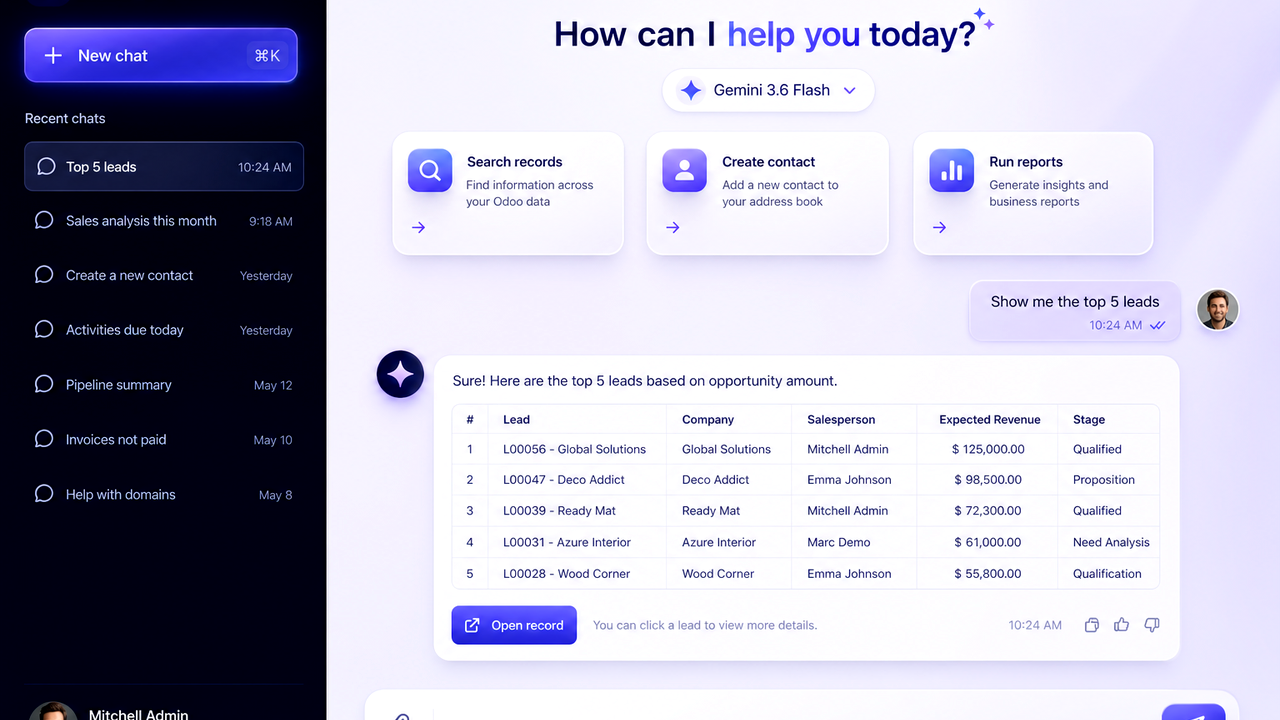
Fullscreen Chat Workspace
Dedicated AI Workspace action with recent chats, New chat, model pill and rich message UI.
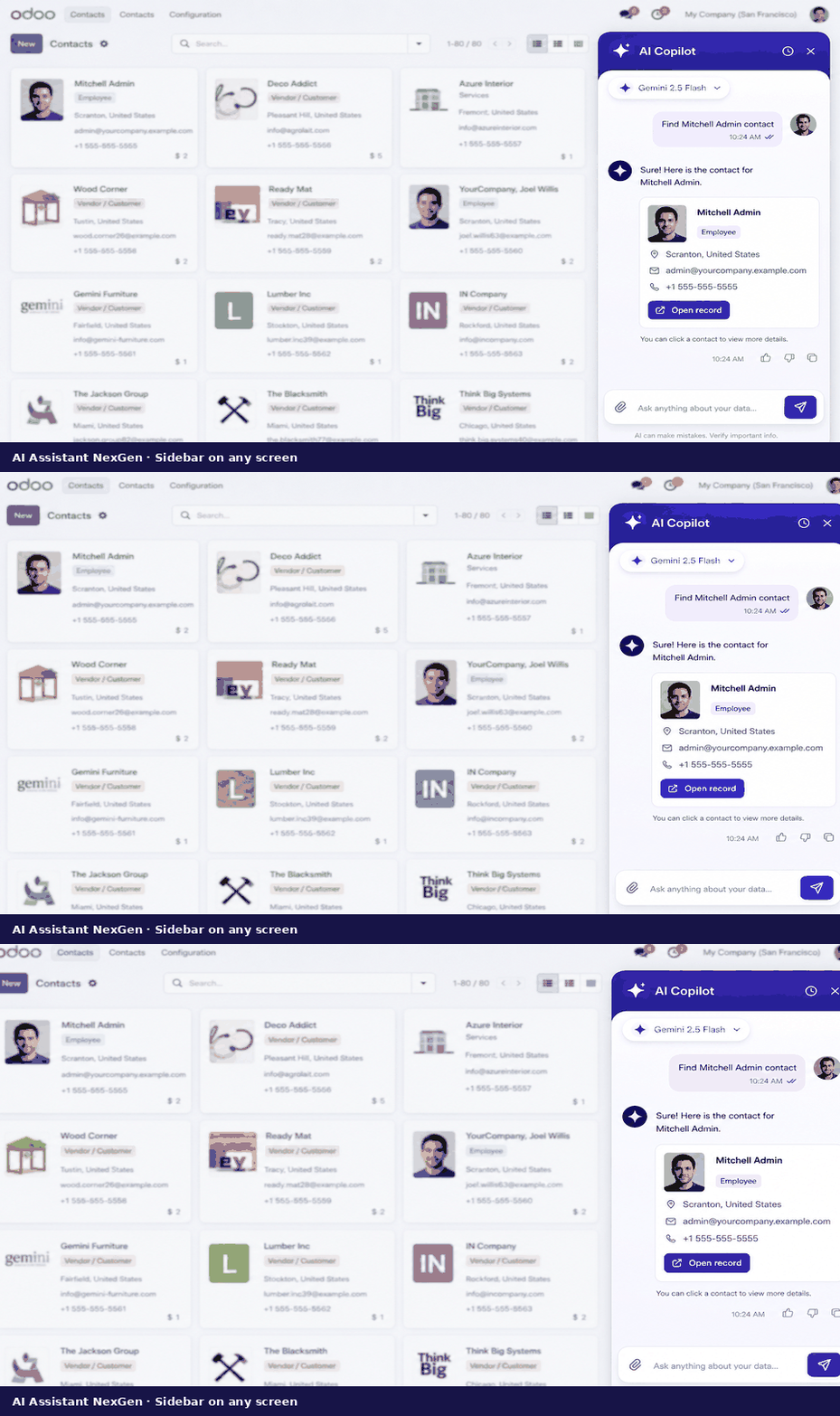
Sidebar Copilot
Compact attractive panel with history view, welcome screen and quick prompts.
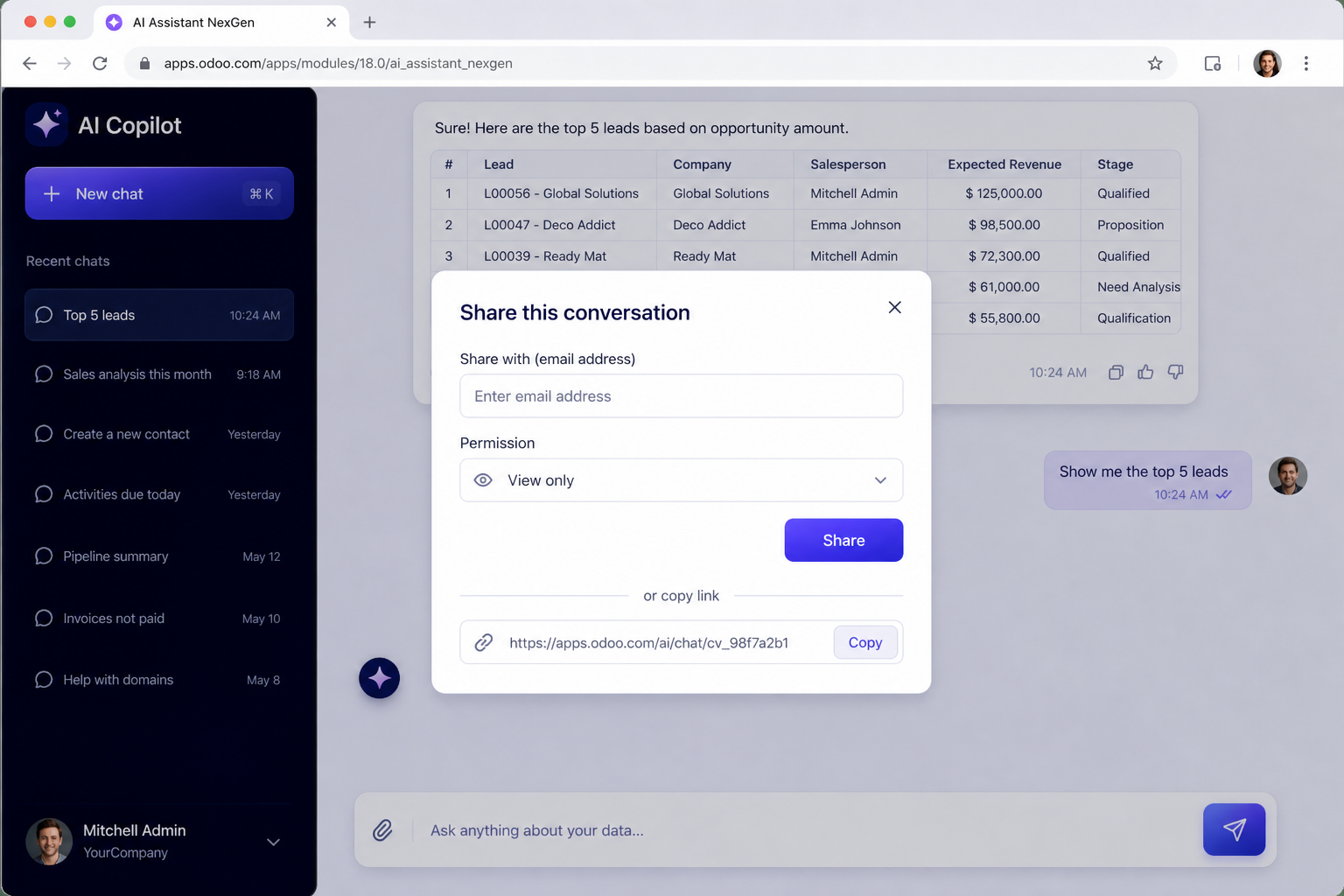
Share conversation
Send the thread to teammates via Discuss chat windows or email.
Live chat session
Continue any conversation with timestamps, attachments and open-record actions.
Complete Copilot capability guide
Workspace modes, approvals, tools, providers, RAG, multimodal, share, security and audits — every feature explained.
Fullscreen Chat Workspace
Dedicated AI Workspace with a dark sidebar, New chat, recent sessions, model pill, suggestion cards and a rich composer — built for deep analysis without leaving Odoo.
Detail — Menu: AI Copilot → Chat Workspace.
Systray Sidebar Copilot
Open the assistant from the navbar magic icon on any screen — Contacts, Sales, Inventory — without losing your current view.
Detail — Visible to AI Copilot User group.
Safe approval workflow
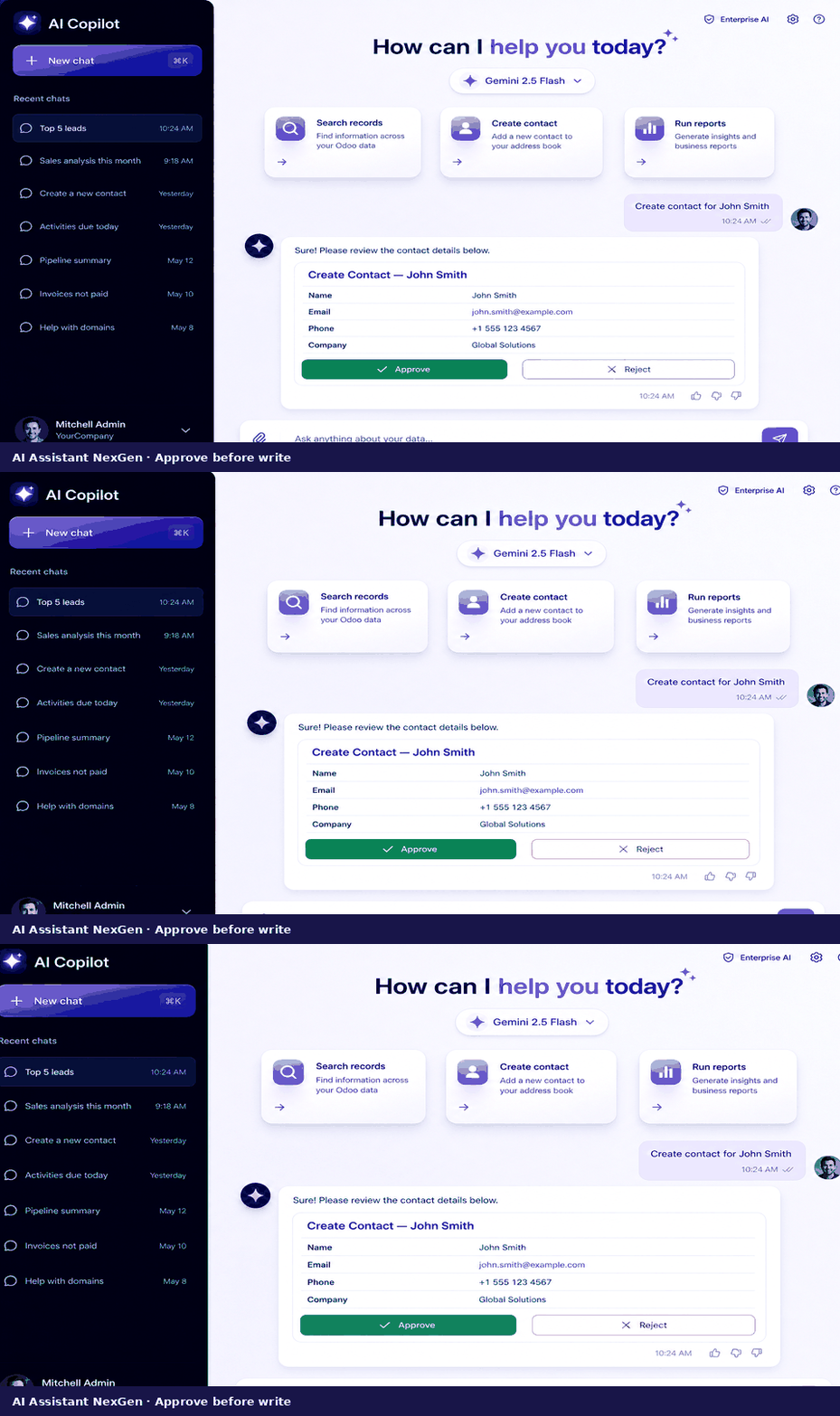
Create, update, delete, email, chatter and server actions never run silently. Review a structured plan, then Approve or Reject.
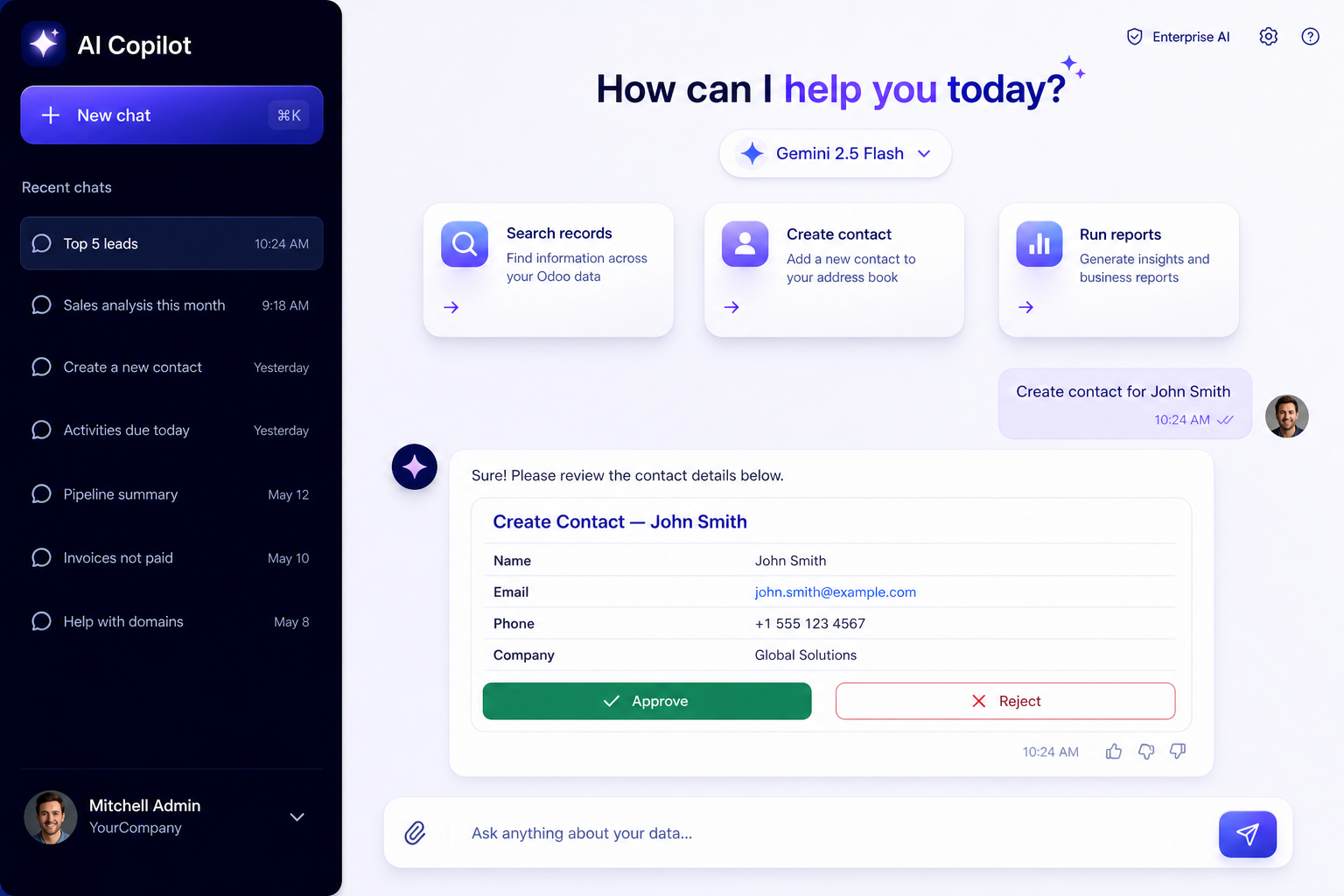
Detail — Write tools pause until you approve.
Open records from chat
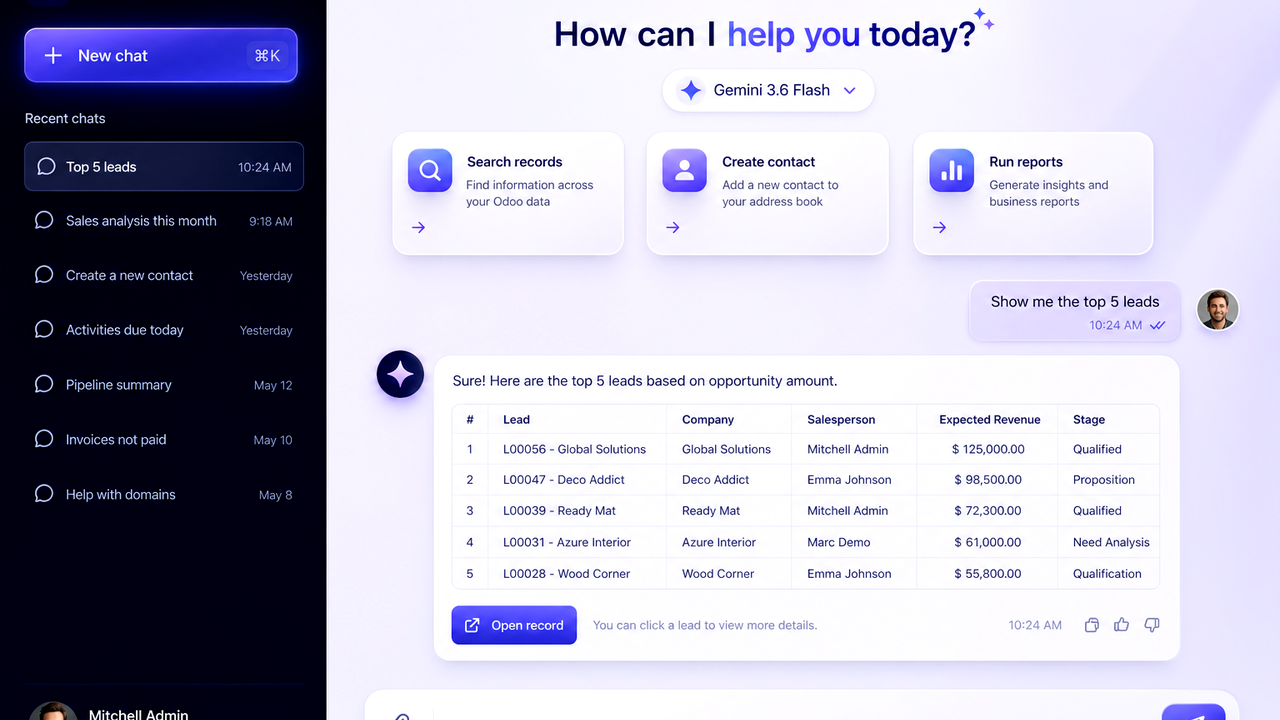
When the Copilot finds or creates a record, jump straight to the Odoo form with one click — in sidebar and fullscreen.
Detail — Record refs stored on assistant messages.
Instant fast search
Common “top / list / count” asks resolve in milliseconds without a full LLM tool loop — still ACL-aware with friendly access-denied messages.
Detail — Skips when attachments are present (uses multimodal path).
Native Odoo tools (20+)
Search, count, group, create, update, delete, open views/records, accounting reports, chatter, email, RAG search and more — all under your user rights.
Detail — Read tools auto-run; write tools need approval.
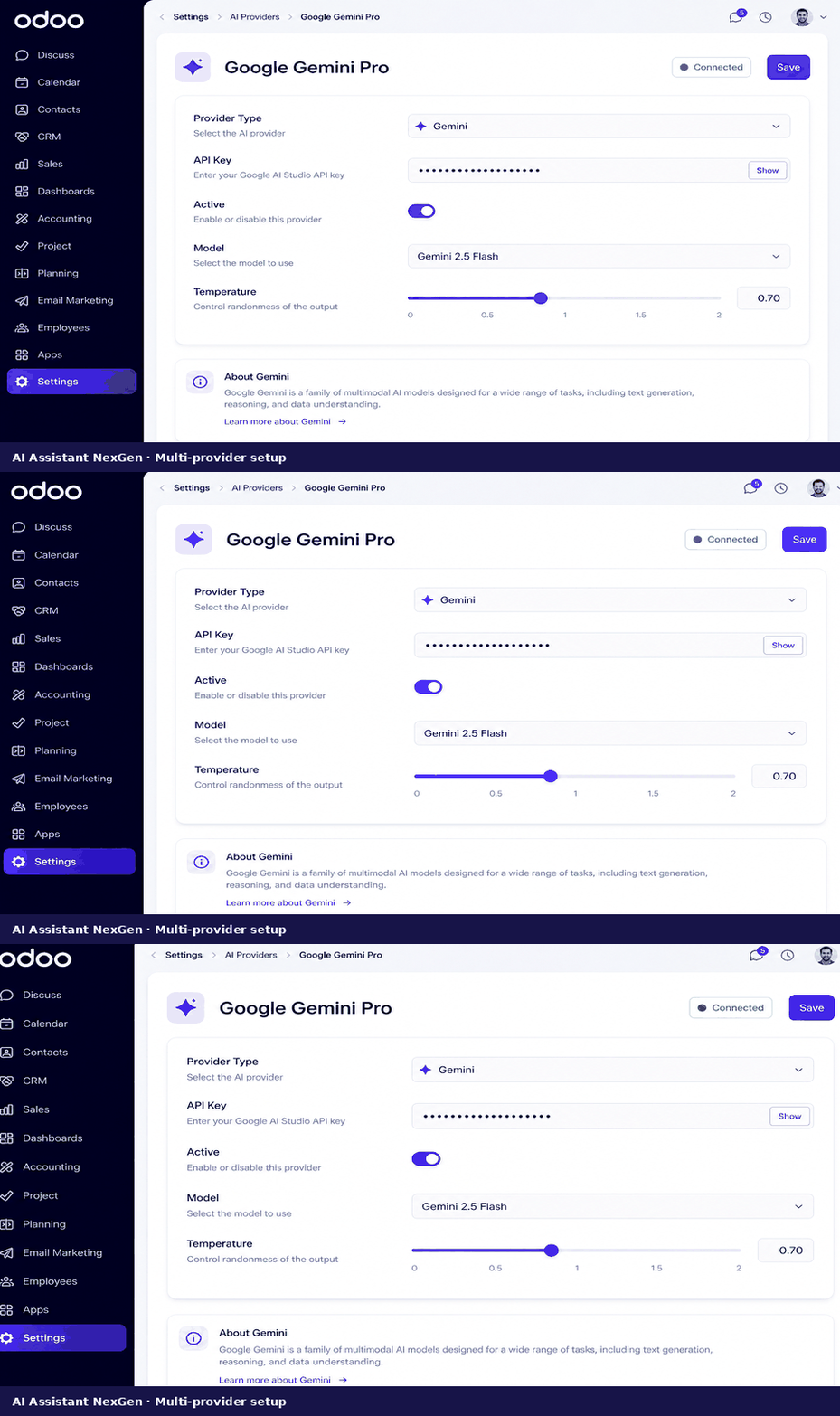
Multi-provider AI
Bring your own keys for OpenAI, Anthropic Claude, Google Gemini, NVIDIA NIM and OpenRouter. Sync models and switch from the chat dropdown.
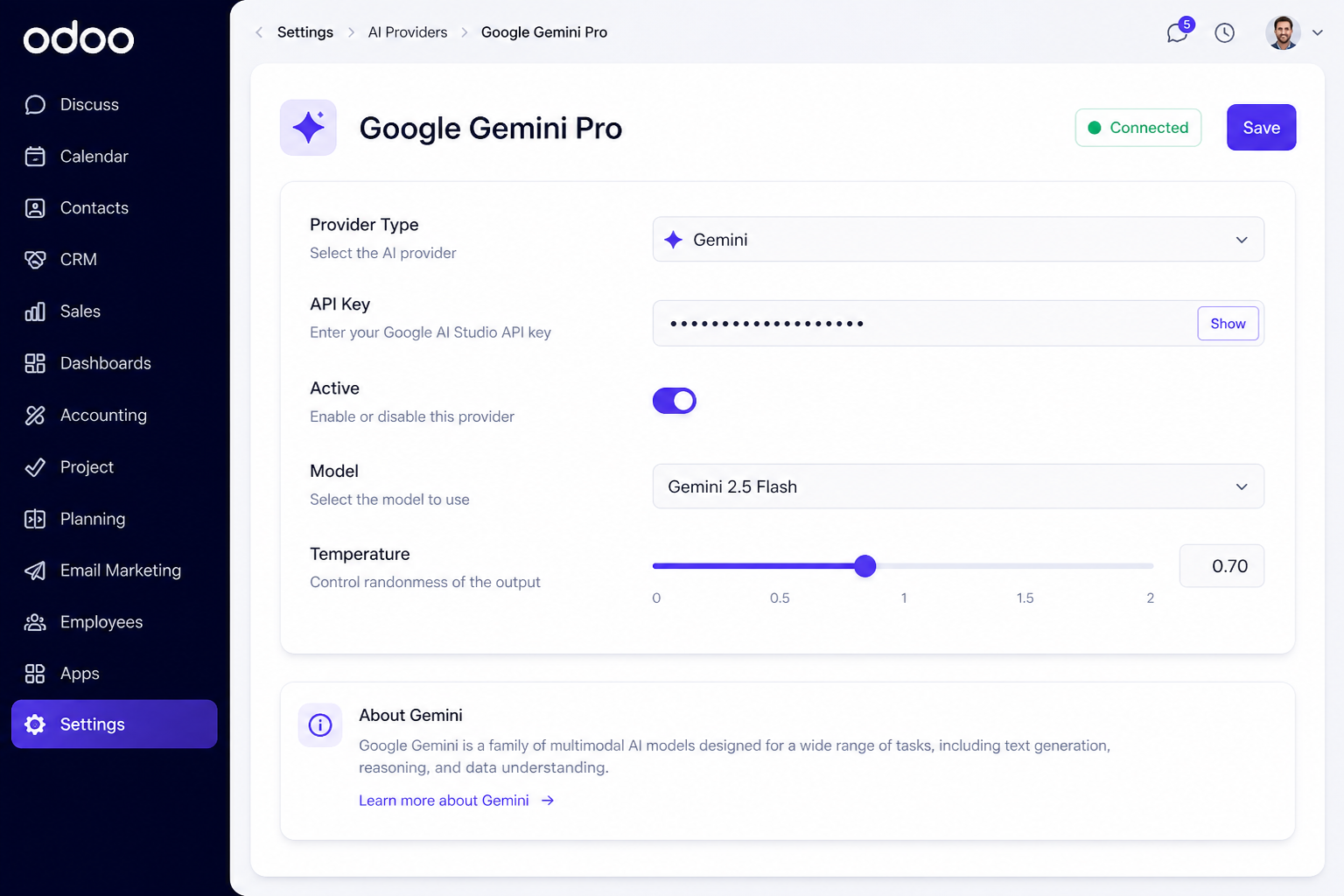
Detail — AI Copilot → Configuration → AI Providers.
Document RAG
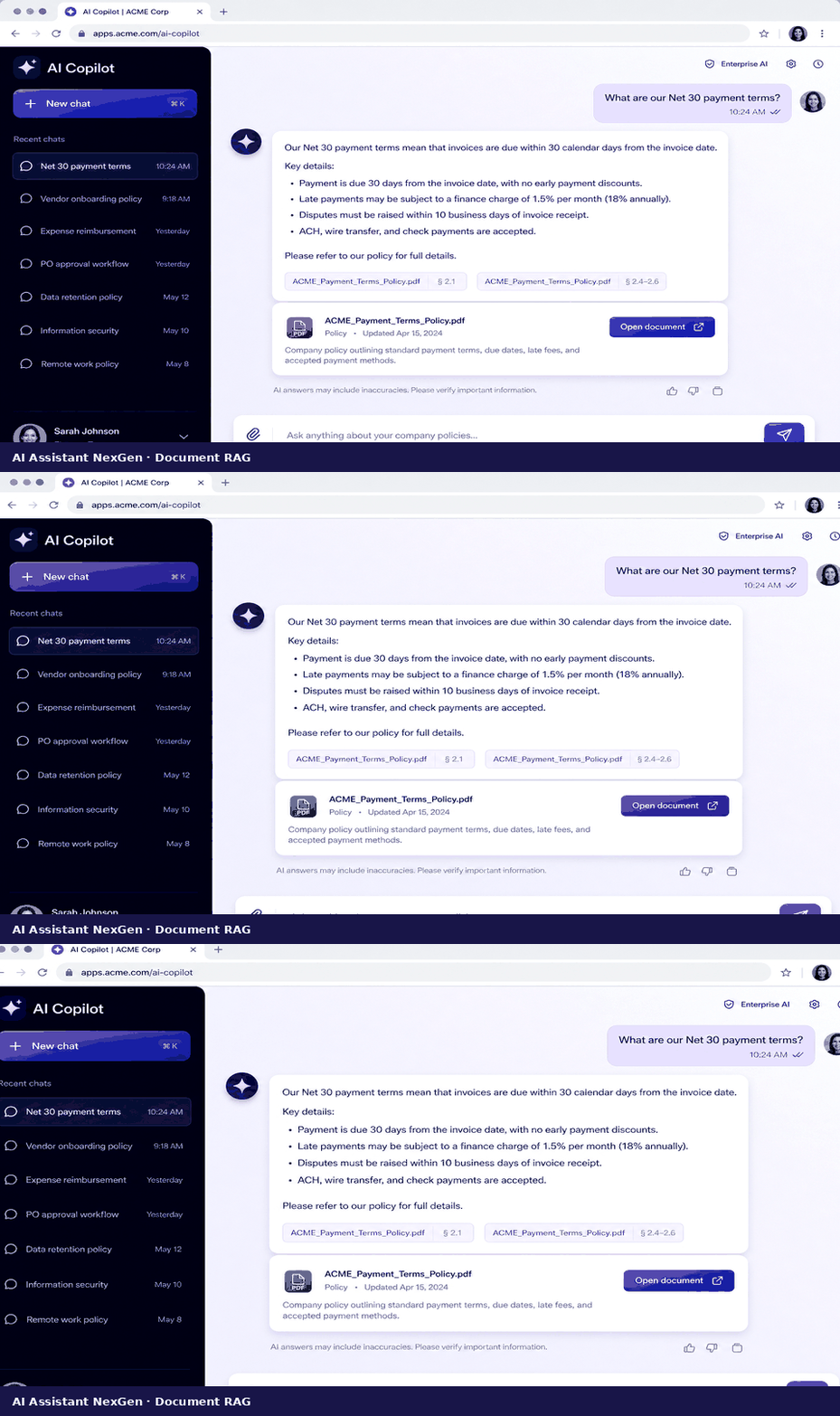
Index attachments into searchable chunks. Ask about policies, handbooks and contracts — the Copilot retrieves relevant passages with scores.
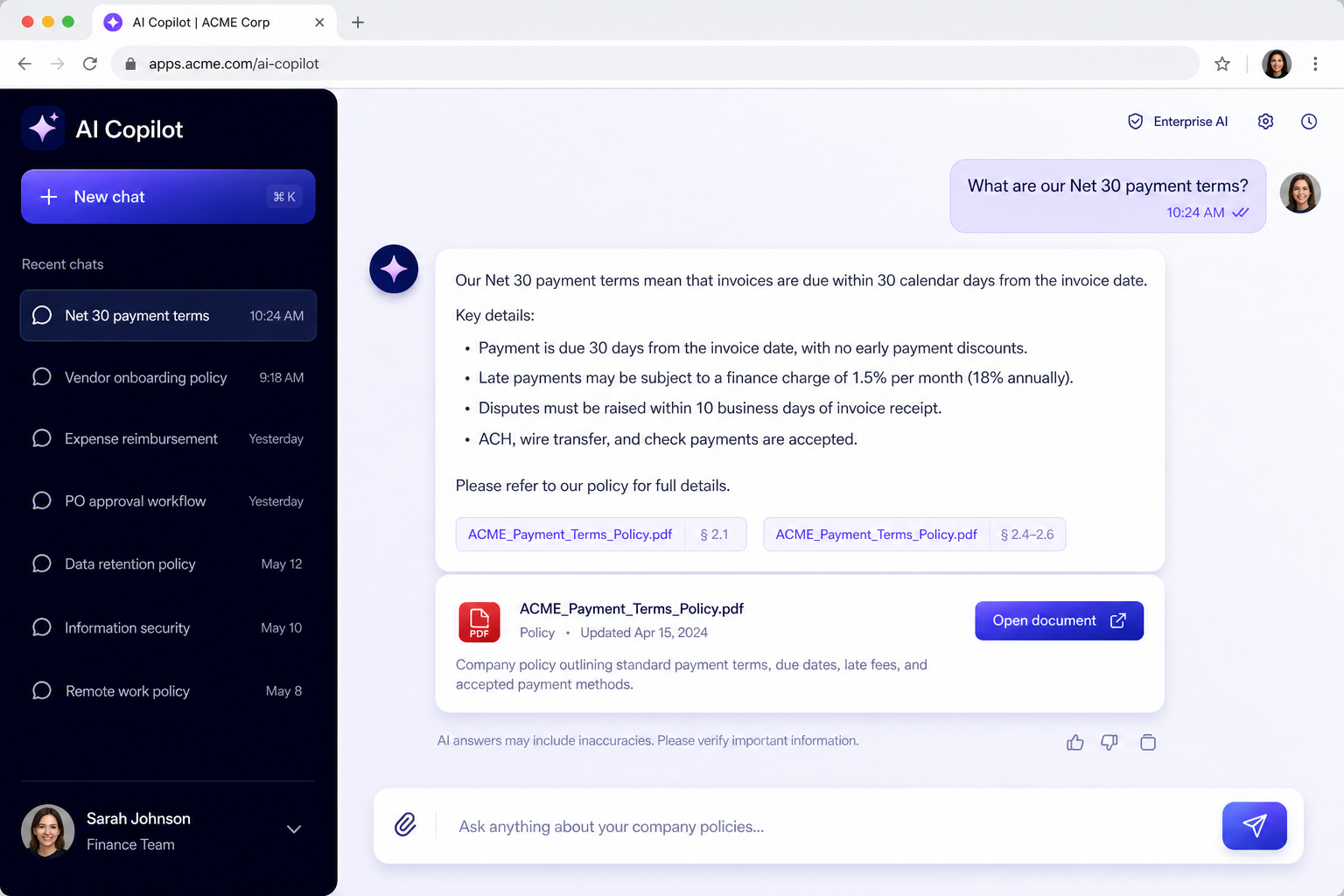
Detail — Document Index menu for Managers.
Multimodal images & PDFs
Attach PNG, JPEG or PDF in the composer. Gemini, OpenAI and Claude receive rich multimodal content; others get extracted text where available.
Detail — Attachments force the full multimodal LLM path.
Stop generation
Cancel a long answer mid-flight. Partial text stays in the thread so you can rephrase and try again without waiting.
Detail — Uses cancel_requested on the session.
Share conversation
Send a formatted HTML transcript to teammates via Discuss 1:1 or email — no need to re-run prompts.
Detail — Share Chat from the workspace sidebar.
Chat sessions & history
Create unlimited sessions, switch history, archive or clear threads. Each user only sees their own conversations.
Detail — Sessions stored as ai.chat.session + messages.
Suggestion cards & quick prompts
Empty workspace shows guided cards (Search, Create, Reports, Navigate, RAG, Insights). Sidebar offers ready prompts like Top Leads.
Detail — Appears on empty greeting state.
Accounting reports
Ask for P&L, Balance Sheet, Trial Balance, Aged Receivable or Aged Payable. Uses Enterprise Accounting Reports when installed; Community gets a clear aging summary + open unpaid invoices.
Detail — Tool: get_accounting_report.
Chatter & email tools
Draft chatter notes or outbound emails from natural language — always behind an approval plan before anything is posted or sent.
Detail — Write-side tools only after Approve.
Open views & navigate Odoo
Ask the Copilot to open a list, form or action. It returns a client action so you land on the right screen instantly.
Detail — Read opens auto-run; server actions need approval.
AI Copilot User & Manager
Security groups gate the menu, systray and configuration. Users chat; Managers configure providers, reindex documents and see all audit logs.
Detail — Assign groups on the user form.
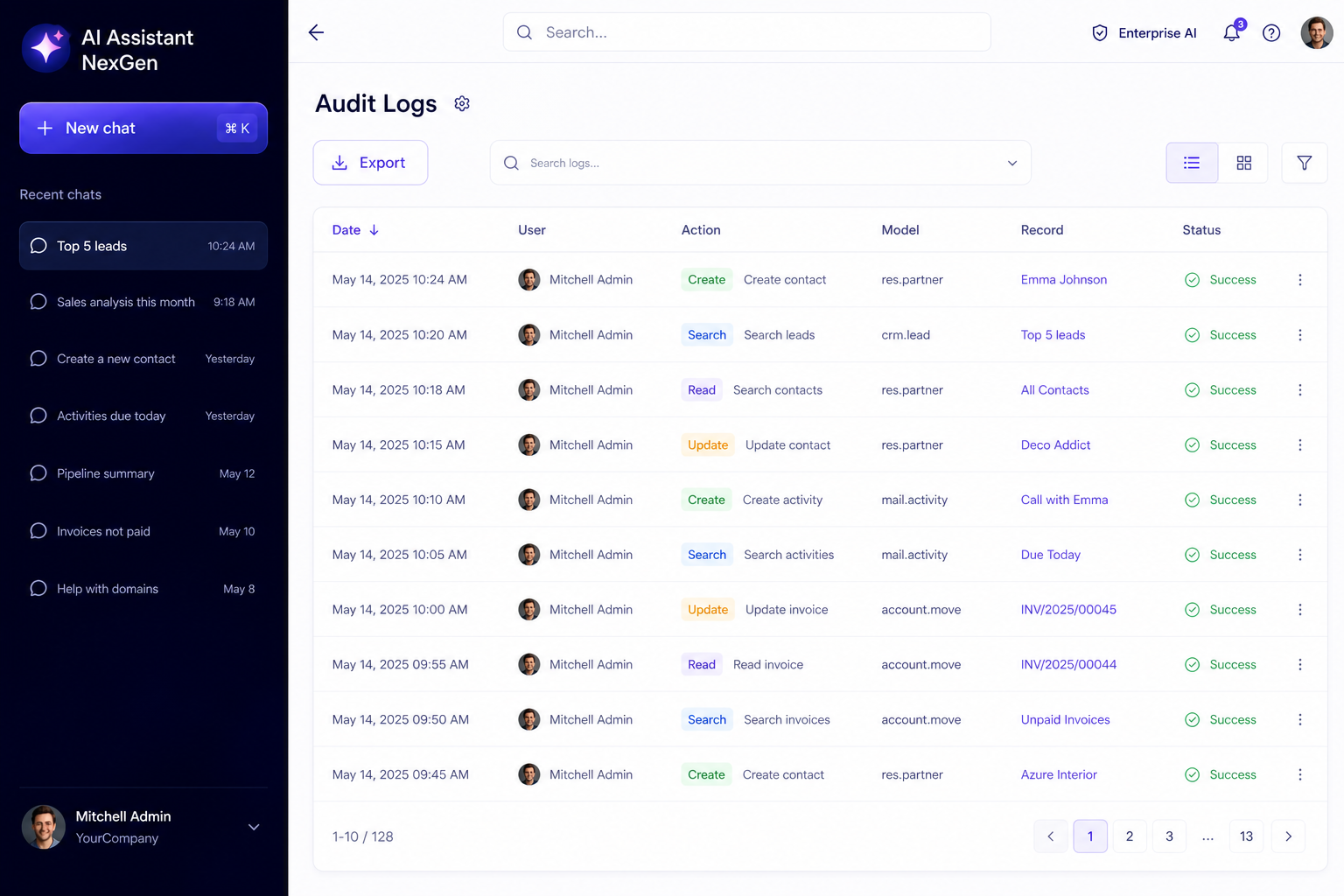
Full audit trail
Every tool call is logged with user, session, action type, target model/id, payload and status — success, fail or rollback.
Detail — Menu: AI Copilot → Audit Logs.
ACL-safe execution
The Copilot always runs as the logged-in user. No privilege escalation — access errors become clear messages instead of invented data.
Detail — Tools use the user environment, not sudo.
Model selector & per-user providers
Switch Gemini Flash, GPT-4o, Claude Sonnet and more mid-conversation. Per-user provider clones keep personal keys isolated when needed.
Detail — Synced models marked Available for Chat.
Every tool the Copilot can call
Read tools run automatically. Write / email / action tools always require your approval.
search_read_recordsAutoDomain search & read fields
count_recordsAutoCount records by domain
search_read_groupAutoAggregations / group-by
read_recordAutoRead one record by ID
open_viewAutoOpen list / form view
open_recordAutoOpen a specific form
get_accounting_reportAutoP&L, BS, TB, Aged AR/AP
get_model_fieldsAutoField schema discovery
get_current_contextAutoCurrent UI model / id
search_documentsAutoKeyword on attachment index
semantic_search_documentsAutoRAG chunk search
search_attachmentsAutoFind attachments by name
create_recordApproveCreate any accessible model
update_recordApproveUpdate fields on a record
delete_recordApproveDelete a record
post_chatter_messageApprovePost note / comment
send_emailApproveEmail a partner
execute_actionApproveRun ir.actions.server
execute_methodApproveCall a public method
get_tool_schemaAutoList tools & parameters
Multi-provider AI
Configure OpenAI, Claude, Gemini, NVIDIA NIM and OpenRouter. Sync models from API and switch from the chat dropdown.
Config — AI Copilot → Settings → AI Providers.
Document semantic search
Automatic chunking and semantic search across indexed Odoo attachments (PDFs and text).
Config — Document Index menu for managers.
Images & PDFs in chat
Attach PNG, JPG or PDF. Providers that support multimodal receive rich content; PDFs fall back to extracted text when needed.
AI Copilot User & Manager
Only users with AI Copilot / User see the menu and systray. Managers configure providers and document index.
Full audit trail
Every tool call is logged with user, model, payload and status — including read tools and rejected actions.
Your business data goes directly from your Odoo server to the AI provider you configure. NexGen Solutions never receives your ERP payloads.
- Write tools always require explicit approval
- Operations run inside database savepoints
- Sessions and messages are isolated per user
Frequently asked questions
Everything about setup, providers, security, tools, RAG, workspace modes and licensing.
What does AI Assistant NexGen do?
It is a conversational AI Copilot inside Odoo. Ask in plain language to search records, create/update data (with approval), open views and reports, post chatter, send emails, search indexed documents (RAG), and jump straight to records — all under your existing access rights.
Which Odoo versions are supported?
Odoo 19.0 Community and Enterprise, on-premise and Odoo.sh. Third-party Apps Store modules are not available on Odoo Online (odoo.com SaaS).
Community or Enterprise — any difference?
The Copilot works on both. Some accounting report client actions need the Accounting Reports app (Enterprise). For Community, aged receivable/payable and similar asks get a clear summary table plus an action to open unpaid invoices.
Is this multi-company compatible?
Yes. The assistant runs as the logged-in user, so company context, record rules and multi-company access rights apply exactly as they do in the normal UI.
Do I need a developer to install or use it?
No. Install from Apps, add your API key on an AI Provider, assign the AI Copilot User / Manager groups, and start chatting from the systray or the fullscreen workspace.
How do I get started in 5 minutes?
1) Install the module. 2) Open AI Copilot → Configuration → AI Providers, set a real API key and activate a chat model. 3) Add yourself (or users) to AI Copilot User. 4) Click the magic icon in the systray or open the fullscreen workspace and ask a question.
Which AI providers are supported?
OpenAI, Anthropic Claude, Google Gemini, NVIDIA NIM, and OpenRouter (100+ models). Configure several providers and switch from Settings or the in-chat model dropdown.
Do I need to pay NexGen for AI token usage?
No. Bring your own API keys and pay each provider directly at their published rates. The module price is a one-time Apps Store license fee — not a usage subscription.
Can I use more than one provider at the same time?
Yes. Keep multiple providers active and pick the model per conversation from the dropdown (for example Gemini for speed, Claude for long documents, OpenAI for coding-style answers).
What happens if my API key is wrong or a placeholder?
The Copilot rejects empty or placeholder keys and shows a clear configuration message instead of calling the provider. Update the key on the provider form and try again.
Can the AI modify Odoo data without permission?
No. Create, update, delete, email, chatter posts and server/window actions require an explicit approval plan. You review the steps and Approve or Reject before anything is written.
Which actions run automatically vs need approval?
Read tools (search, count, group, open view, document search, accounting report lookup) run automatically. Write tools and side-effects (create/update/delete, post chatter, send email, run actions) always need your approval.
What if I reject an approval plan?
Nothing is written. The plan is cancelled, the rejection is logged in the audit trail, and you can ask the Copilot to adjust the plan or do something else.
Does the AI bypass access rights or record rules?
No. Tools execute as the current user. If the user cannot read or write a model, the Copilot cannot either — and it explains the access denial clearly.
Does it work with custom / third-party modules?
Yes. Native ORM tools work on any installed model the user can access — including custom apps — subject to ACL and record rules.
What native tools are available?
20+ tools including search/list records, count, group-by aggregates, create/update, open list/form/actions, accounting reports, post chatter, send email, document RAG search, and more. Read tools auto-run; write tools need approval.
What is Instant Fast Search?
Common asks like “top 5 leads”, “count open invoices” or “list unpaid bills” are answered via a fast path without a full multi-step tool loop — so lists and counts feel instant while still respecting security.
Can I open an Odoo record from the chat?
Yes. When the Copilot creates or finds a record, you get an Open button (and linked refs) to jump straight to that form in the current database — in both sidebar and fullscreen modes.
Fullscreen workspace vs sidebar — which should I use?
Use the fullscreen workspace for deep analysis, long threads and sharing. Use the systray sidebar when you want the Copilot beside Contacts, Sales, Inventory or any other screen without leaving context.
How do I open the sidebar Copilot?
Click the magic / AI icon in the top systray. The panel docks on the right so you can ask questions while staying on the current app.
Can I stop a long answer mid-generation?
Yes. Hit Stop to cancel the in-flight provider response. Partial text already shown stays in the thread; you can rephrase and send again.
Can I share a conversation with colleagues?
Yes. Share a formatted HTML transcript via Discuss or email so teammates see the same Q&A without re-running the prompts.
Can I keep multiple chat sessions?
Yes. Create new chats anytime, switch history from the sidebar list, archive old threads, and pick a different model per session when needed.
Can I upload documents and images in chat?
Yes. Attach PNG, JPEG and PDF. Gemini, OpenAI and Claude receive multimodal content when supported; other providers get extracted text where available.
What is Document RAG?
RAG (Retrieval-Augmented Generation) indexes selected attachments into searchable chunks. When you ask about policies, manuals or contracts, the Copilot retrieves relevant passages and answers with context from your company documents.
How do I index documents for RAG?
Managers open the Document Index / document chunks menu, attach or select files, and run indexing. Chunks are created automatically; you can reindex after updating a file.
Which file types work best for RAG?
Text-rich PDFs and clear policy / handbook documents work best. Scanned image-only PDFs may need OCR or a multimodal model; keep documents reasonably sized for quality retrieval.
Who can see the Copilot menu and systray?
Users in the AI Copilot User group. Managers in AI Copilot Manager can configure providers, models, document indexing and review audit logs.
How do I grant access to demo or portal-like internal users?
Add them to AI Copilot User. They still only see and change data allowed by their normal Odoo groups — the Copilot never elevates privileges.
Is there an audit trail?
Yes. Every tool call is logged with user, tool, model, payload summary and status — including successful reads, approved writes and rejected / failed actions.
Where can managers review audit logs?
Open AI Copilot → Audit Logs (Manager group). Filter by user, date, tool or status to investigate activity.
Are API keys stored securely?
Keys are stored on the AI Provider records in your database and are only usable by Manager-configured providers. Treat your Odoo backup and admin access with the same care as any other secret store.
Does chat data leave my Odoo server?
Prompts and necessary context are sent to the AI provider you configured (OpenAI, Gemini, Claude, etc.) over HTTPS. Odoo business data is not sent to NexGen. Choose a provider that matches your privacy / region requirements.
Can the Copilot send emails or post on chatter?
Yes — after you approve the plan. It can draft and post chatter messages or prepare outbound emails using the standard Odoo mail stack under your user rights.
Can it open accounting reports?
Yes. When Accounting Reports is installed it opens the real report action. On Community it returns a readable aging / unpaid summary and an action to browse invoices.
What if the user asks for something they cannot access?
The Copilot fails closed: it returns a friendly “no access” message instead of inventing data or escalating privileges.
Can I switch the model mid-conversation?
Yes. Use the model selector in the workspace / sidebar. New turns use the selected model; earlier messages stay in history for context.
Does it support streaming / typing indicators?
Yes. The UI shows generation in progress and lets you stop. Exact streaming behavior depends on the selected provider and model.
Will it work offline or without internet?
No. Calling cloud AI providers requires outbound HTTPS from your Odoo server. Local Odoo features (menus, ACL) still work; AI answers need connectivity to the chosen provider.
Is NVIDIA NIM or OpenRouter required?
No. They are optional. Many customers start with Gemini or OpenAI only and add OpenRouter / NVIDIA later for extra models or cost control.
Can I use OpenRouter to access many models with one key?
Yes. Configure the OpenRouter provider with your key and pick from the synced chat models — useful when you want one billing account for many backends.
Does the module include sample / demo chats?
After install you create your own sessions. Suggested prompts (search records, create contact, run reports) appear on the empty workspace to help first-time users.
Can portal or public website visitors use the Copilot?
No. It is a backend (internal user) assistant behind the AI Copilot security groups — not a public website chatbot.
Does it support multiple languages?
You can chat in the language your users prefer; the AI responds in the language of the prompt. Module UI strings follow Odoo’s standard translation system — translate via Odoo’s usual language packs / export.
What are the technical dependencies?
Depends on base, web and mail only. No mandatory Enterprise apps. Extra apps (CRM, Sales, Accounting, etc.) unlock richer answers when installed.
Does upgrading wipe chat history?
No. Sessions, messages, providers and audit logs are stored in your database and survive module upgrades. Always take a backup before major upgrades as usual.
What license is the module under?
OPL-1 (Odoo Proprietary License v1.0). Purchase covers use per the Apps Store terms for your Odoo database(s).
What support is included?
OPL-1 · installation help, configuration guidance, bug fixes and best-practice tips. Email nexgensolutionsodoo@gmail.com.
Where can I get help or request a feature?
Contact NexGen Solutions at nexgensolutionsodoo@gmail.com or visit nexgensolutions.odoo.com.
Is my data used to train NexGen models?
No. NexGen does not host or train on your chat traffic. Prompts go only to the AI provider you configure. Review that provider’s data-use policy for training opt-out options.
Can I uninstall the module safely?
Yes via Apps → Uninstall. This removes Copilot menus, systray and related models/data for this module. Take a backup first if you need to keep chat/audit history.
Why do I see “configure API key” after install?
Provider records ship without live secrets. Paste a real key from your OpenAI / Gemini / Claude / OpenRouter / NVIDIA console, set an active chat model, then refresh the Copilot.
Can managers limit which tools users can run?
Security is primarily through Odoo ACLs and record rules: users cannot act on models they cannot access. Write tools still require per-plan approval even for managers.
Does Create Contact / Lead show field preview before saving?
Yes. The approval card lists the planned field values (name, email, phone, company, etc.) so you can Approve or Reject before the record is created.
Can the Copilot update existing records?
Yes. Ask e.g. “Set Azure Interior’s payment terms to Net 30”. You get an approval plan with the target record and fields; Approve applies the write under your user.
What if generation is slow?
Speed depends on the provider/model and prompt size. Use Instant Fast Search for common lists/counts, pick a faster model (e.g. Gemini Flash), keep attachments lean, and use Stop if a run hangs.
Can I use the Copilot on mobile / tablet?
Yes through Odoo’s responsive backend. The sidebar and workspace adapt; for long approvals the fullscreen workspace is usually more comfortable on larger screens.
Does it conflict with Odoo’s official AI features?
It is a standalone Copilot app with its own providers, tools and UI. You can run it alongside other AI apps; just avoid duplicate confusing menus by assigning groups carefully.
How is pricing calculated on the Apps Store?
Listed as a paid Odoo Apps module (see the store page for current price and currency). AI provider usage is billed separately by OpenAI, Google, Anthropic, NVIDIA or OpenRouter.
One purchase vs typical AI add-ons
Stop piecing together chat widgets, tool runners and document search. Get a full Odoo Copilot — providers, approvals, RAG, audit and workspace — in a single connected module.
AI Assistant NexGen
One module. One price. Full-stack Copilot with safe write approvals.
- ✓ Everything included in one purchase
- ✓ Multi-provider AI (Gemini, OpenAI, Claude, NVIDIA, OpenRouter)
- ✓ Approvals, RAG, Open record & share chat
- ✓ Sidebar + fullscreen + full audit trail
Typical multi-app approach
Buy several AI helpers, then wire keys, tools and UI yourself.
- ✕ Chat-only widget + extra paid tool packs
- ✕ Writes without a clear approval plan
- ✕ Document RAG usually a separate product
- ✕ Weak audit, share and Open-record UX
All-in-one Copilot
Chat, tools, RAG, approvals and audits in one module.
Faster answers
Instant fast search for top/list/count asks.
Safe by design
Human approval before every write tool.
Bring your own AI
Your keys, your providers — no usage markup.
Explore our premium solutions
Elevate your Odoo workspace with our meticulously crafted modules.
Ready to supercharge your Odoo workflow?
Install AI Assistant NexGen and start acting on your data — not just asking about it.